
AI Video Effects
Make your next post, product reveal, or story worth pausing for. Create a striking video from one photo and put your idea in the spotlight.
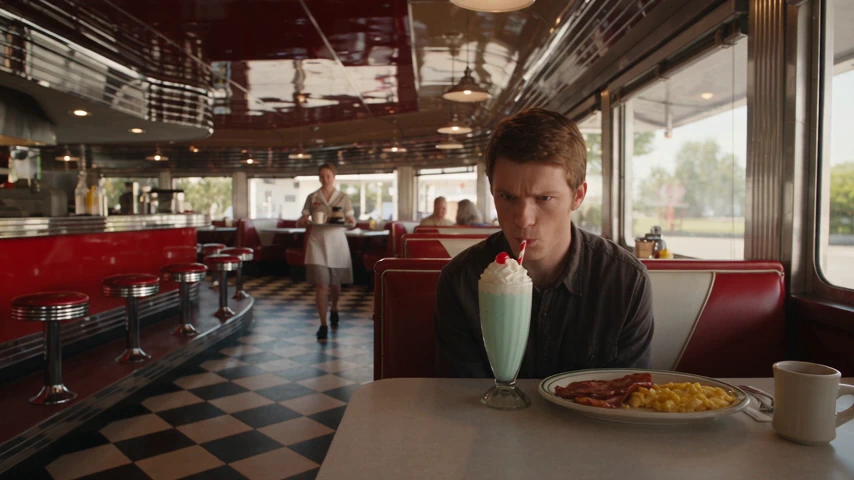
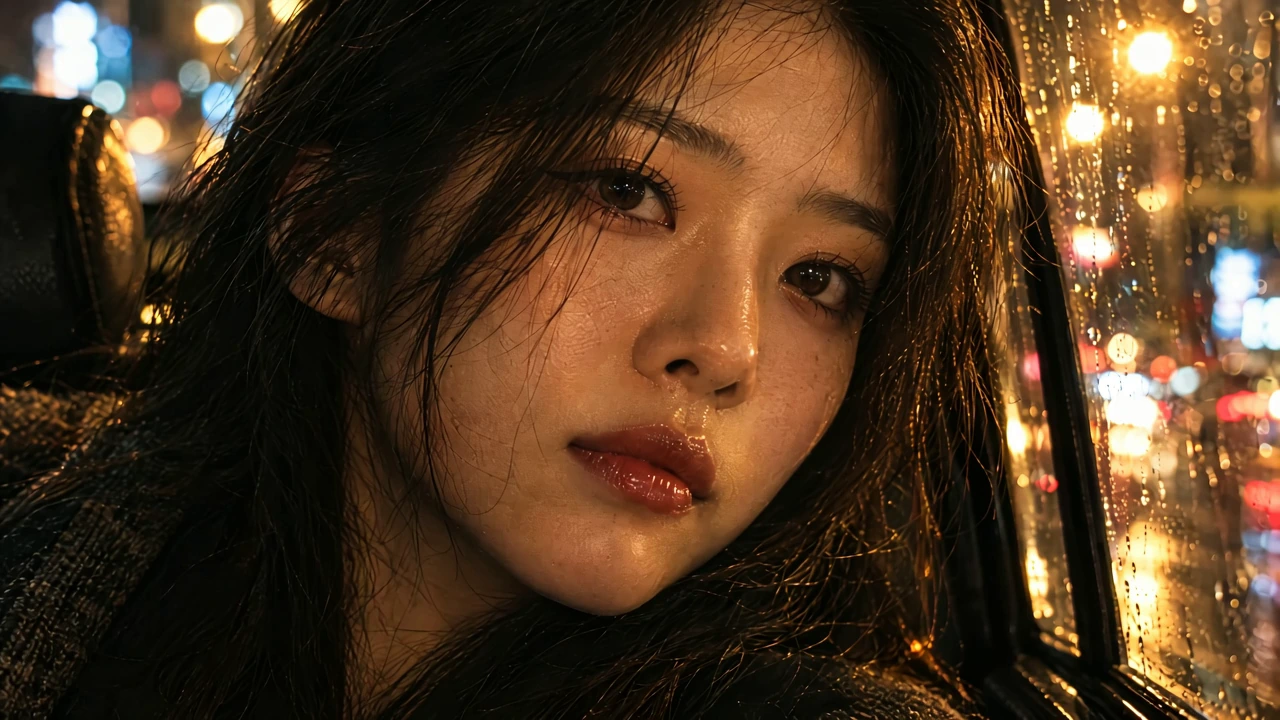
Create a Moment That Pulls You In
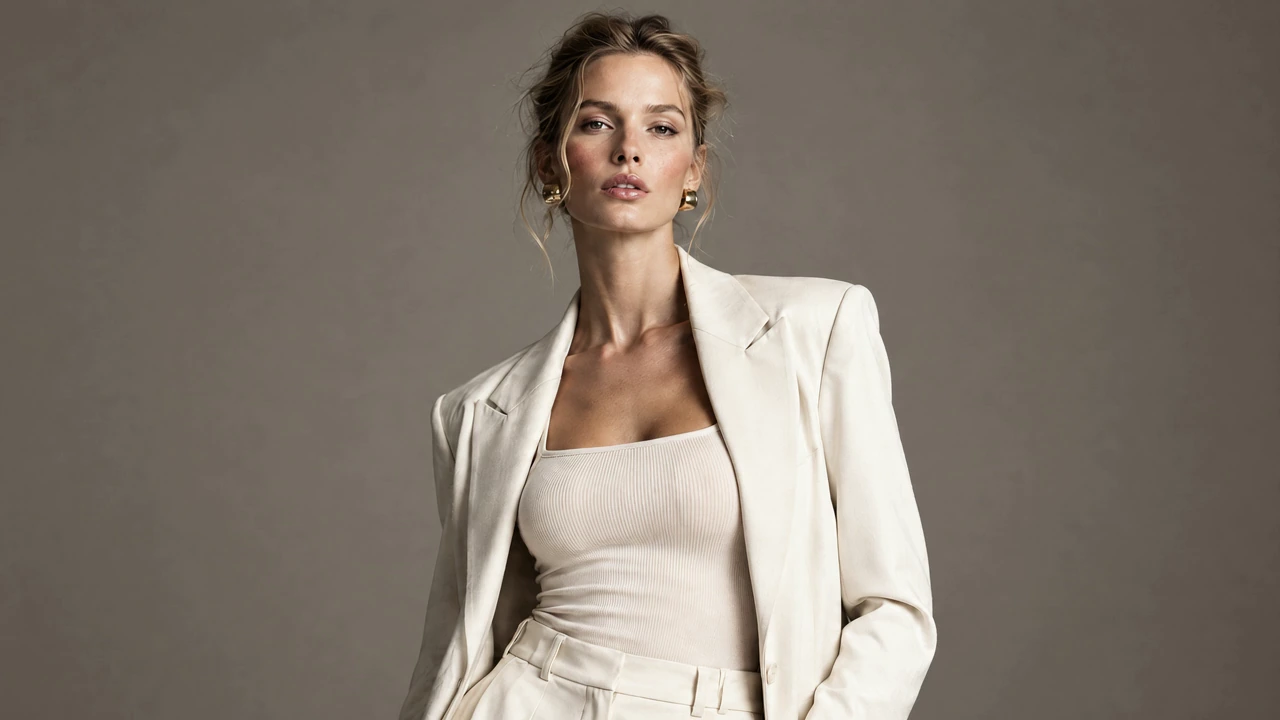
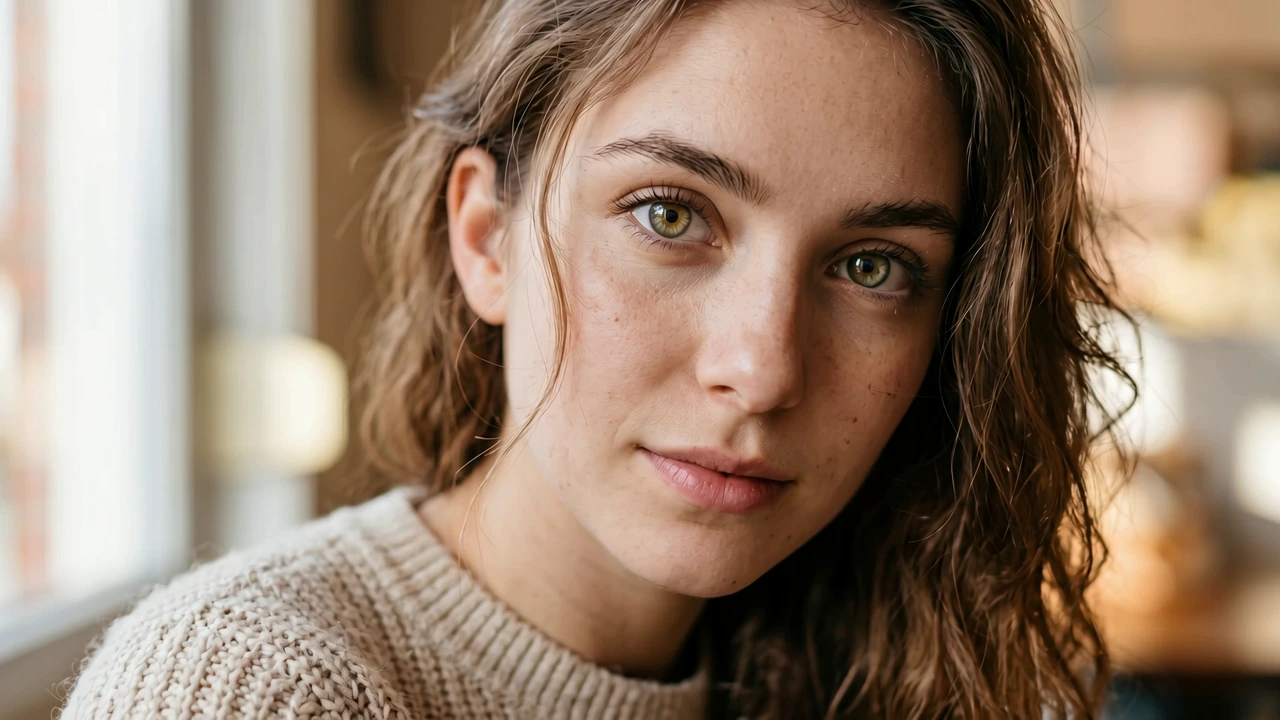
Bring the emotion in a portrait to the surface. A closer view, a change of light, or a gaze that fills the frame can turn a familiar image into a stronger story opening. Give viewers a reason to lean in before the next scene begins.
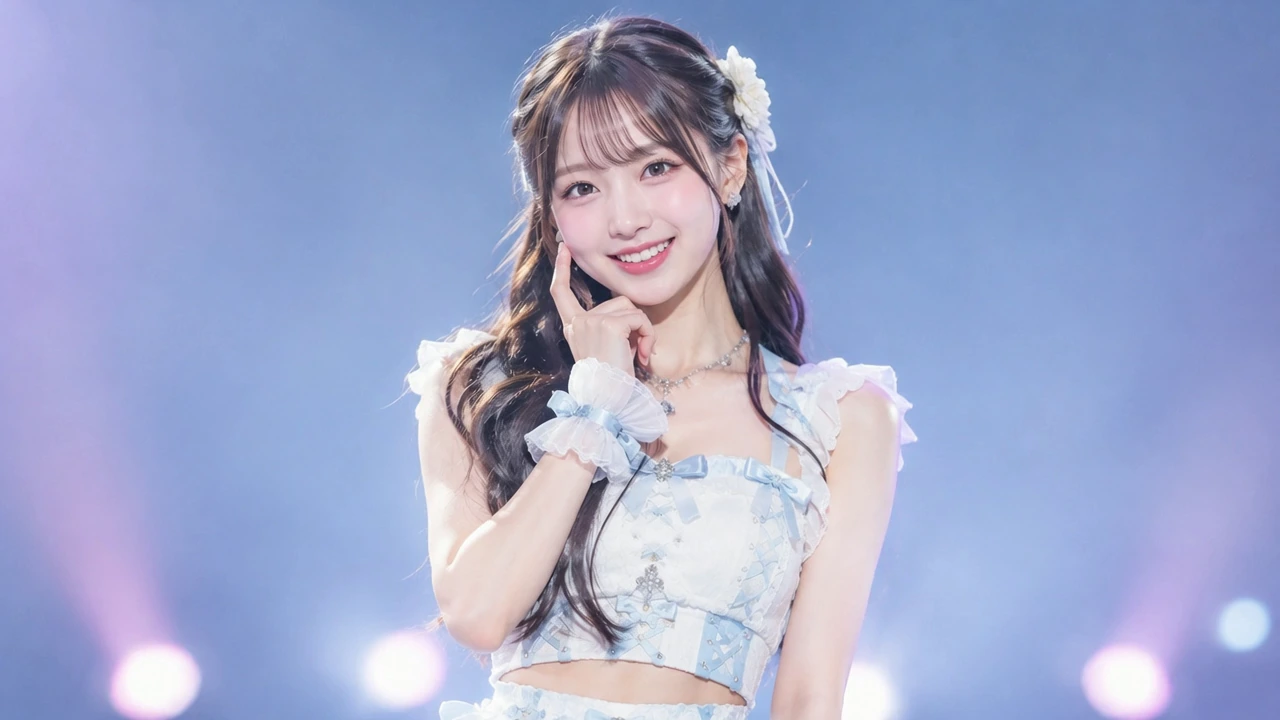
Give Your Character an Entrance
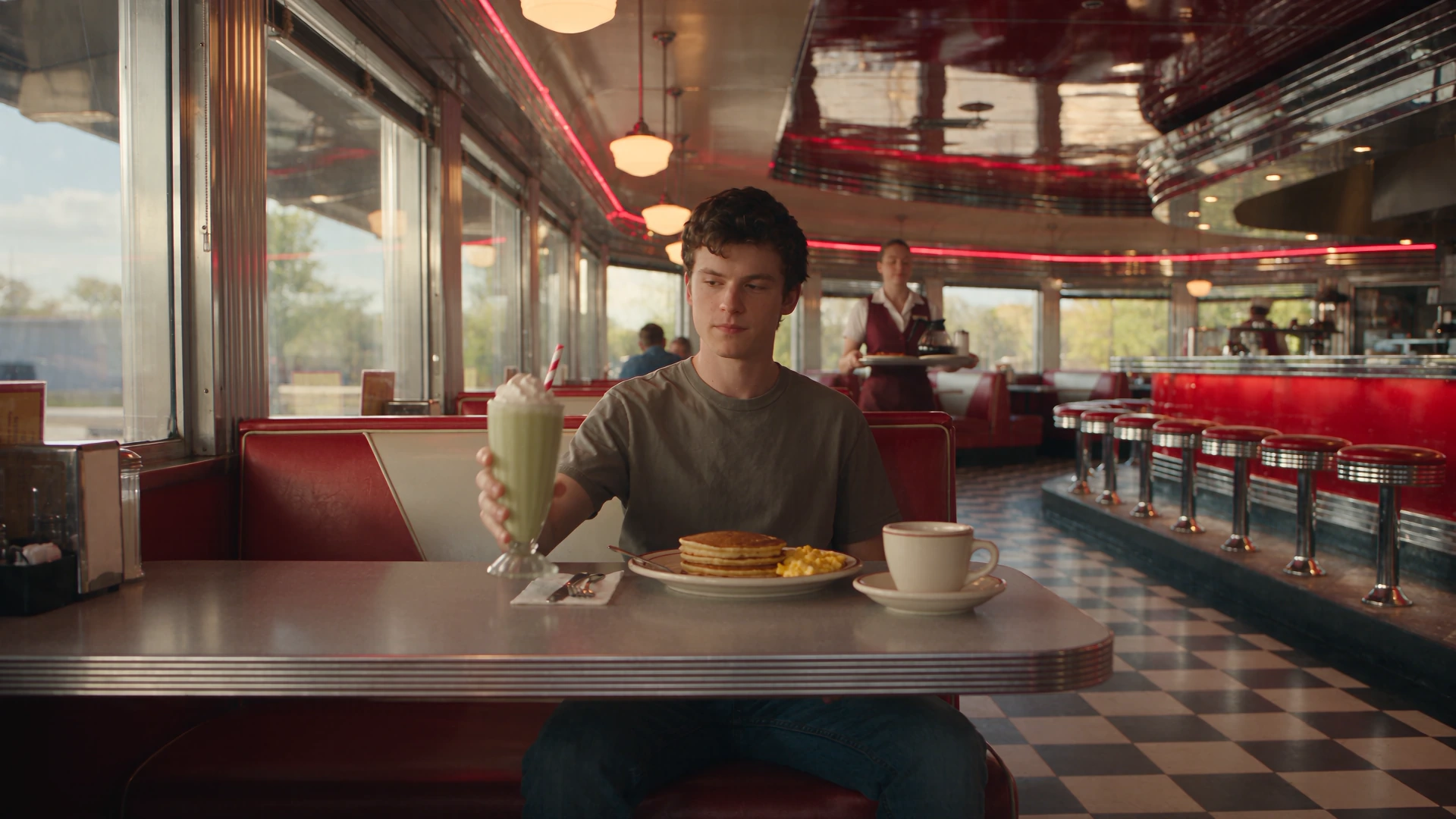
Bring a familiar face into the action and give your character room to shine. Turn a photo into a performance with personality for a creator introduction, a playful reveal, or a new chapter in a character’s story.
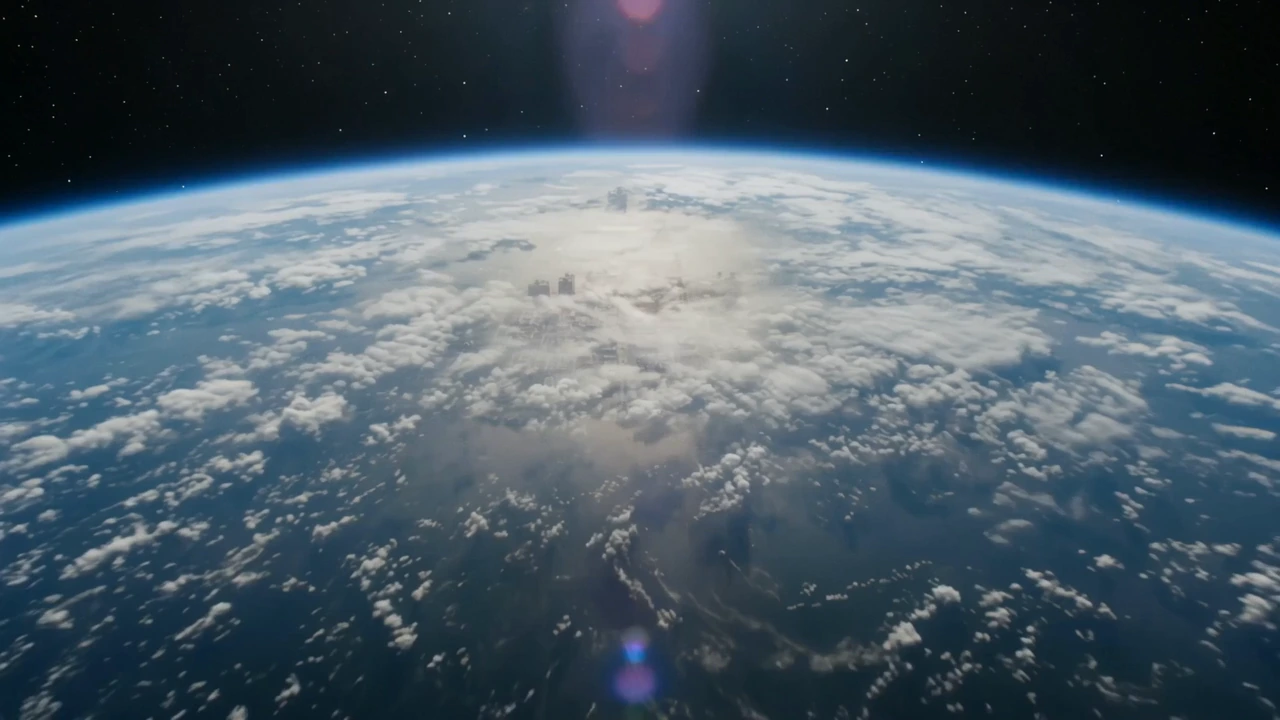
Give Your Story a Bigger Opening
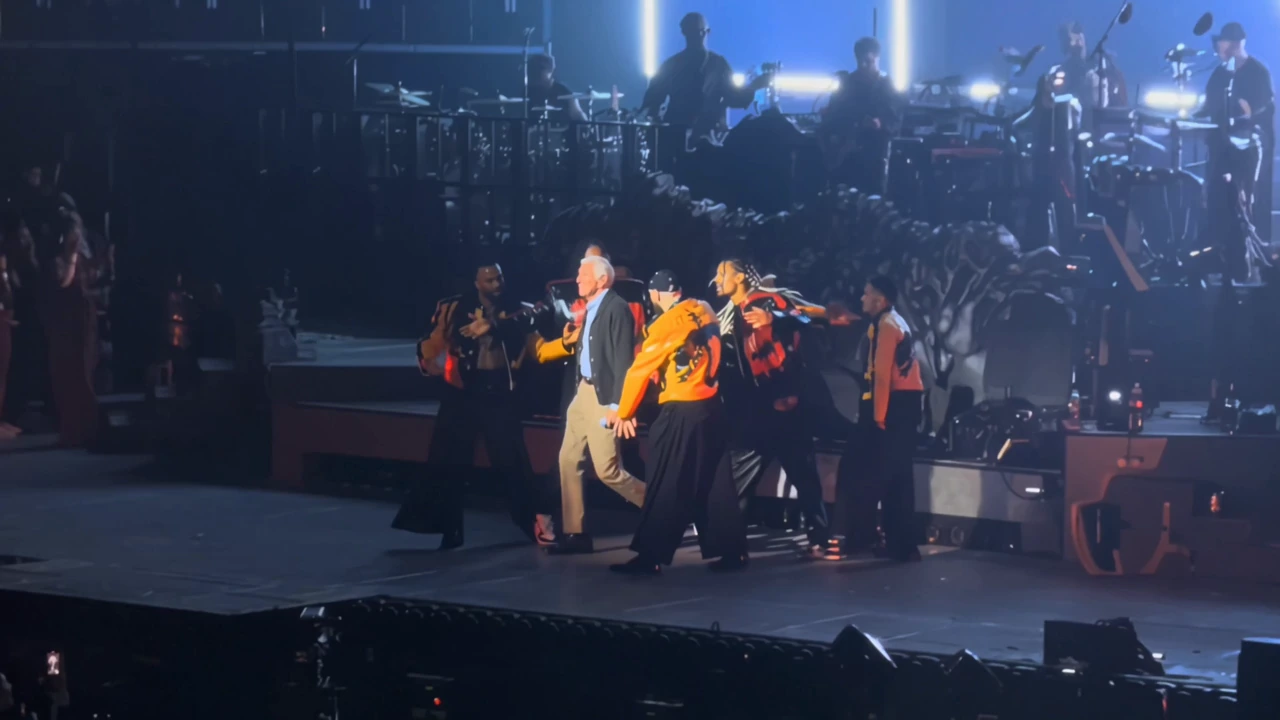
Let the opening do more than set the scene. Use a change in scale or a dramatic arrival to make a place feel like part of the story. Bring that sense of anticipation to a travel video, a launch, or your next personal project.
Find Your Next Standout Moment
Discover a look that gives your photo a story to tell.
Create an Effects Video in 3 Steps
Choose a preset, prepare the right photo, and continue to the Morph Studio app.
Choose Your Effect
Watch the previews and select the movement or scene you want. The effect sets the sequence; Bullet Time and AI Dance use platform-supplied reference videos.
Upload a Suitable Photo
Sign in and add one clear image. Match it to the effect: a complete subject for rotation, a full-body character for dance, a destination scene for Earth Zoom, or a visible eye for Eye Zoom.
Generate Your Video
Continue to the app with your photo and effect. Choose your output settings, review the current credit quote, and confirm generation. Download the video for your next post or edit.
Keep Your Creative Momentum
Find a new way to turn your next idea into images and video.
Build What Comes Next
Develop a scene, guide a performance, or give your finished video a new level of detail.
Give your character a performance guided by your own movement reference.
Turn your image and a written idea into a new scene for your story.
Create a higher-resolution version of your finished video for your next project.
Frequently Asked Questions
Choose your photo, understand the presets, and prepare to create.
Make Your Next Video the One They Remember
Give your photos a starring role in your next post, launch, or story. Bring your idea to life with AI video effects.