
GPT Image 2.6
Turn prompts and reference images into striking visuals with GPT Image 2.6. Bring scenes to life with animated GIFs and create SVG graphics that stay sharp at any size.

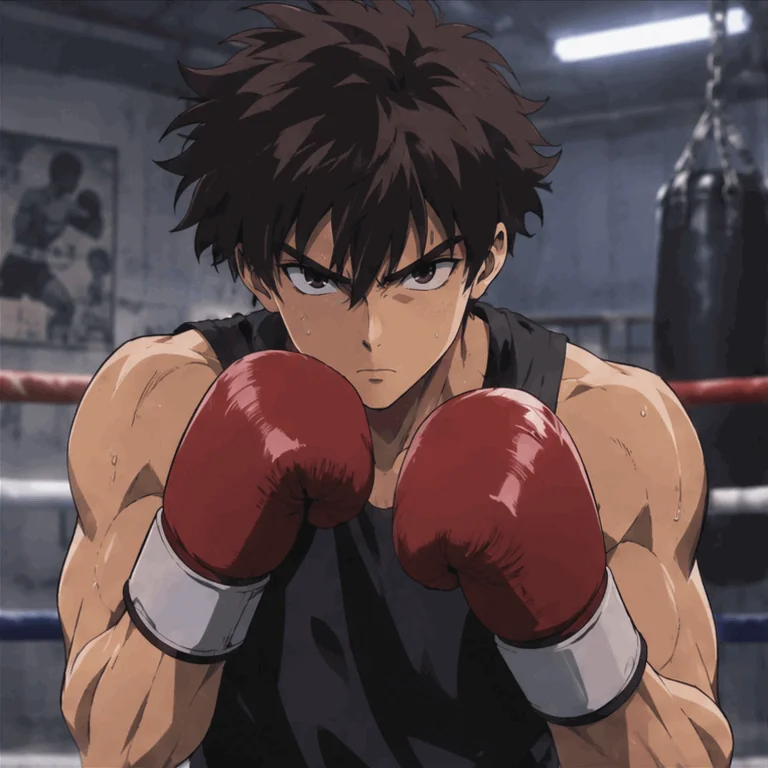
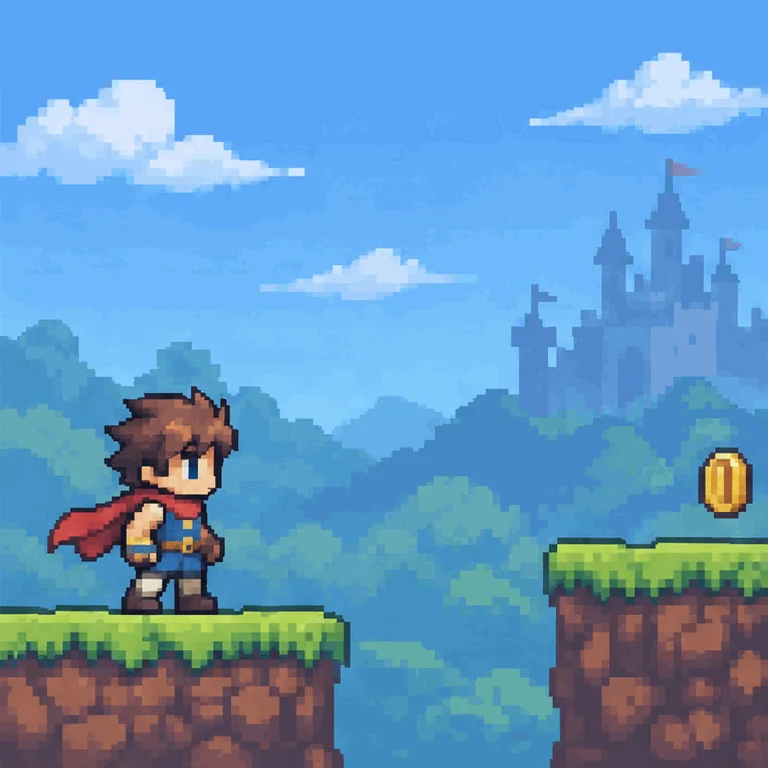
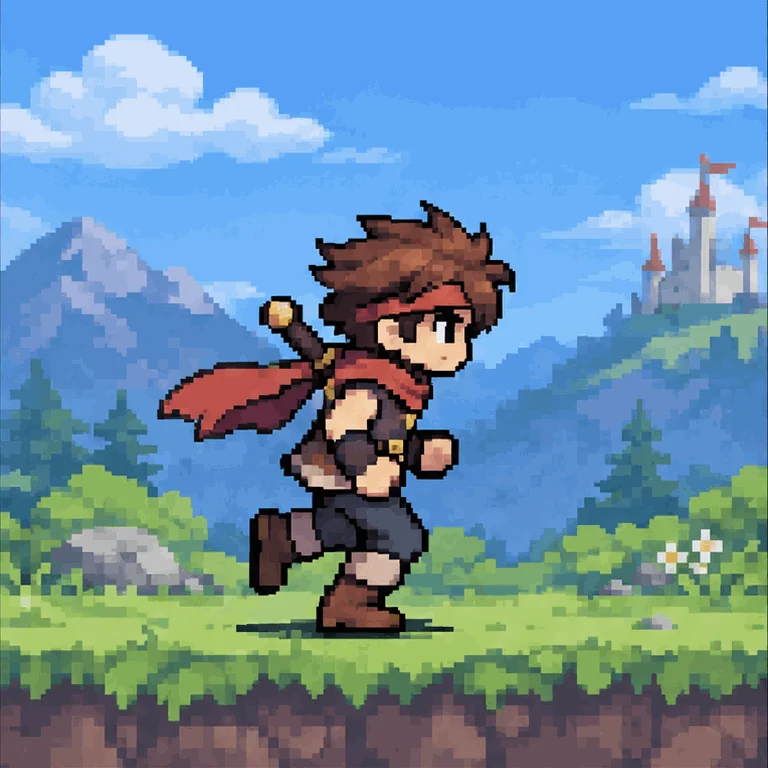
Explore animated GIFs
Create looping animations with GPT Image 2.6. Choose GIF format and adjust the frame count and duration in Animation Preset.
Start Creating
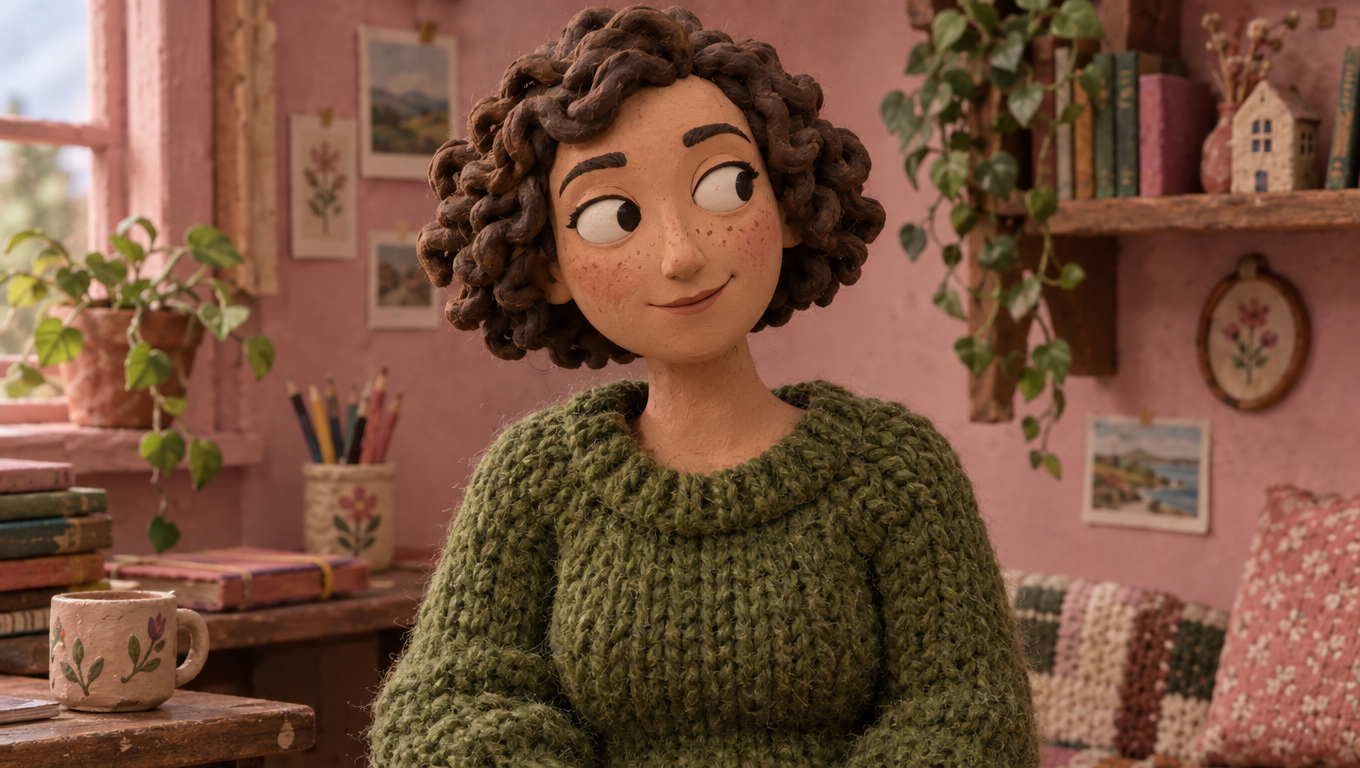
Create with prompts and references
Describe a new image or upload reference images to guide your next creation. Refine characters, scenes, and visual details in the image workspace.
Start Creating
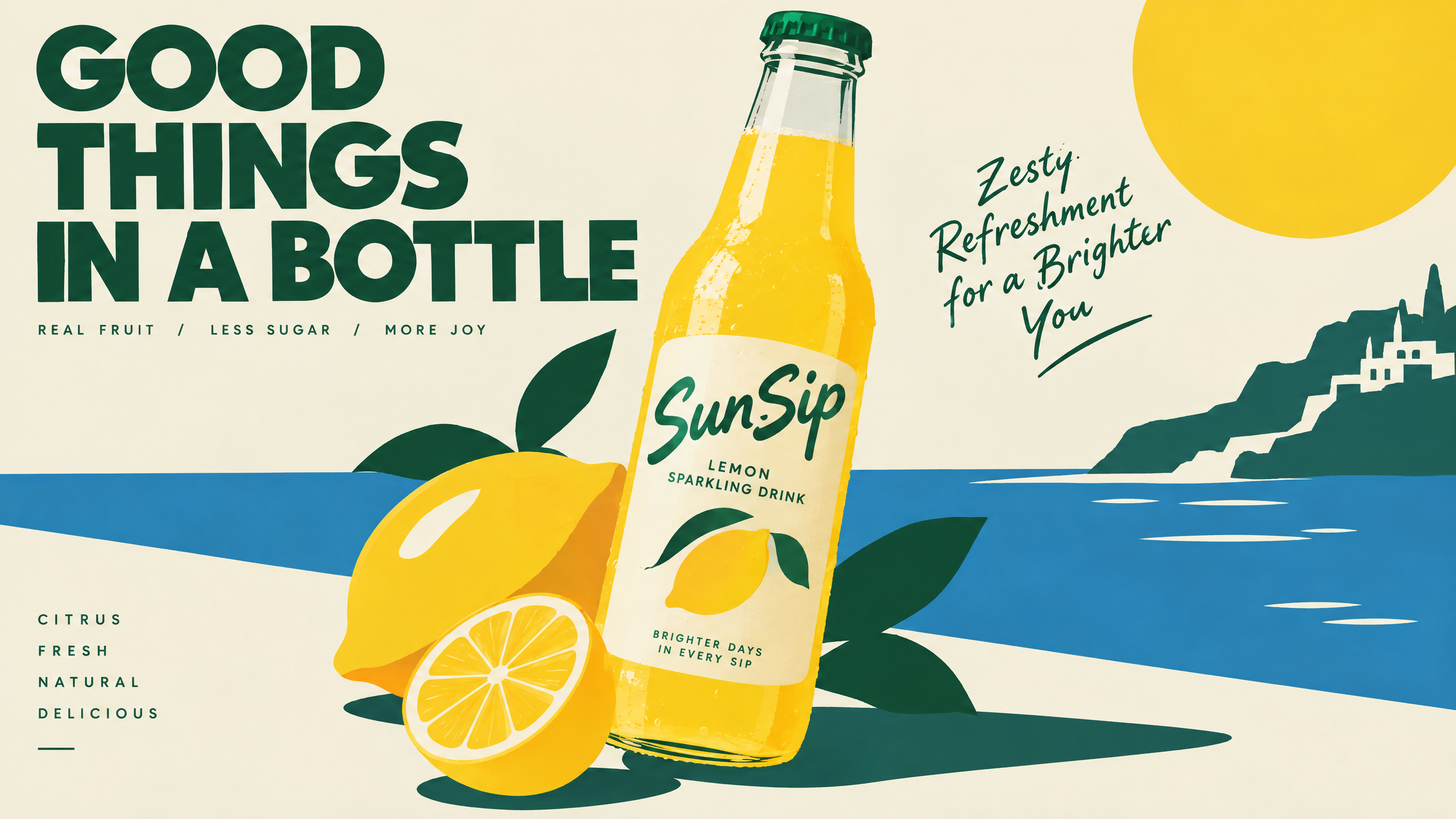
Create SVG graphics
Choose SVG format to create scalable vector graphics from a text prompt, including logos, icons, and illustrations.
Start Creating
使用方法
Create with GPT Image 2.6 in Morph Studio.
1
Describe your image
Write a prompt and choose the visual details you want to create.
2
Choose a format
Select PNG, GIF, or SVG. Adjust Animation Preset when using GIF.
3
Generate and download
Generate your image, review the result, and download your creation.
探索更多功能
發現Morph Studio更多AI創作工具
Frequently asked questions
GPT Image 2.6 in Morph Studio
GPT Image 2.6 可以創作甚麼?
Create images, animated GIFs, and scalable SVG graphics from text prompts.
Can I upload reference images?
Yes. Use reference images for PNG or GIF output. SVG supports text prompts only.
Flare 和 Sunburst 有甚麼分別?
Flare 適合快速生成圖像及探索創意。Sunburst 提供更細緻的畫面,並在多次編輯中更好地保持細節一致,適合人物、產品和品牌視覺。
How do I create an animated GIF?
Choose GIF in Format, then use Animation Preset to set the frame count and frame duration.
How do I create an SVG?
Choose SVG in Format and describe the graphic you want to create with a text prompt.
How many credits does a generation use?
The Generate button shows the credits required for your selected settings. Availability and usage depend on your plan.
Where can I find my results?
View your generated results in the image workspace and Library.
Create with GPT Image 2.6
Explore image, GIF, and SVG creation in Morph Studio.