
GPT Image 2.5: What's New and What You Can Create
GPT Image 2.5 is now available on Morph Studio. OpenAI's new image model brings more natural lighting and texture, closer matches to reference images, and more precise editing to your creative work. Choose Flare for faster generation or Sunburst for finer control during edits. Here's what changed, what each version offers, and how to use them for everything from text-led designs to product and fashion images.
What is GPT Image 2.5?
GPT Image 2.5 is a family of AI image generation and editing models from OpenAI. You can create an image from a written description, supply reference photos to guide the result, or ask it to change an existing picture. It comes in two versions: Flare emphasizes generation speed, while Sunburst emphasizes precision during edits.
What's new in GPT Image 2.5?
In its September 8 announcement, OpenAI highlights more natural lighting and textures, closer matches to reference subjects, and better control through repeated edits. The company also reports that Flare cuts generation latency by 50% compared with GPT Image 2, though the time you wait will vary with the request.
Earlier GPT Image models could already render text and work from references. This update aims to make those abilities more dependable as an image goes through revisions. That matters when the same product needs to appear across a campaign, or when a poster needs a new date after everyone has agreed on the design.
Flare vs. Sunburst: which should you choose?
Flare and Sunburst both generate and edit images, and cost the same on Morph. Choose according to the work you need to do and how quickly you need the result.
| Flare | Sunburst | |
|---|---|---|
| Focus | Faster generation | Finer control during edits |
| Best for | Social images, product visuals, and multiple variations on a deadline | Targeted changes to lettering, product details, or an established composition |
| Price | Same as Sunburst | Same as Flare |
If turnaround time matters most, choose Flare. If your brief calls for a precise edit, you can start directly with Sunburst. Quality is a separate setting for either version.
What can you create with GPT Image 2.5?
Posters where the words belong in the picture
A headline has a shape as well as a meaning. Its width, weight and position help determine how a poster feels. When a model can render the words inside the image, you can explore the lettering and the artwork together.
An exhibition poster might call for a large title above a painting, with the date tucked into a quiet corner. A product ad might need a few words to hold their own against a busy photograph. GPT Image 2.5's text rendering opens up these kinds of designs.
For a useful first attempt, supply the exact copy and describe where it belongs. In Morph's AI poster generator, describe the hierarchy as well: which words should dominate, and which should sit quietly beneath them. Once the composition works, check the spelling and small print at full size.
Product and fashion images built from multiple references
Most creative briefs begin with something that already exists: a face, a garment, a product or a setting. Reference images give the model those details without making you describe them all from scratch.
With multiple references, you can bring separate ingredients into one image. A fashion shoot might borrow the person from a portrait, the coat from a product photo and the setting from a location shot. Telling the model what to take from each image makes the brief clearer.
That makes image-to-image creation useful for developing lookbooks and campaign concepts. Finished product photography demands a closer check. A bottle can look familiar at a glance and still have the wrong cap or label, enough to rule it out for a product page.
Existing images that need a better second draft
Few images make it through a review without a change. Someone wants a cleaner background, a different outfit or a shorter headline. GPT Image 2.5's editing improvements are meant to give you more control over those requests, including when several revisions follow one another.
For an interior concept, for instance, you could ask for a different chair material while keeping the room's framing. The instruction should name both the change and what needs to stay.
Keep the approved image nearby as you work. Small shifts can be easy to miss when you compare each result only with the one immediately before it.
Text editing: a new headline for the same campaign
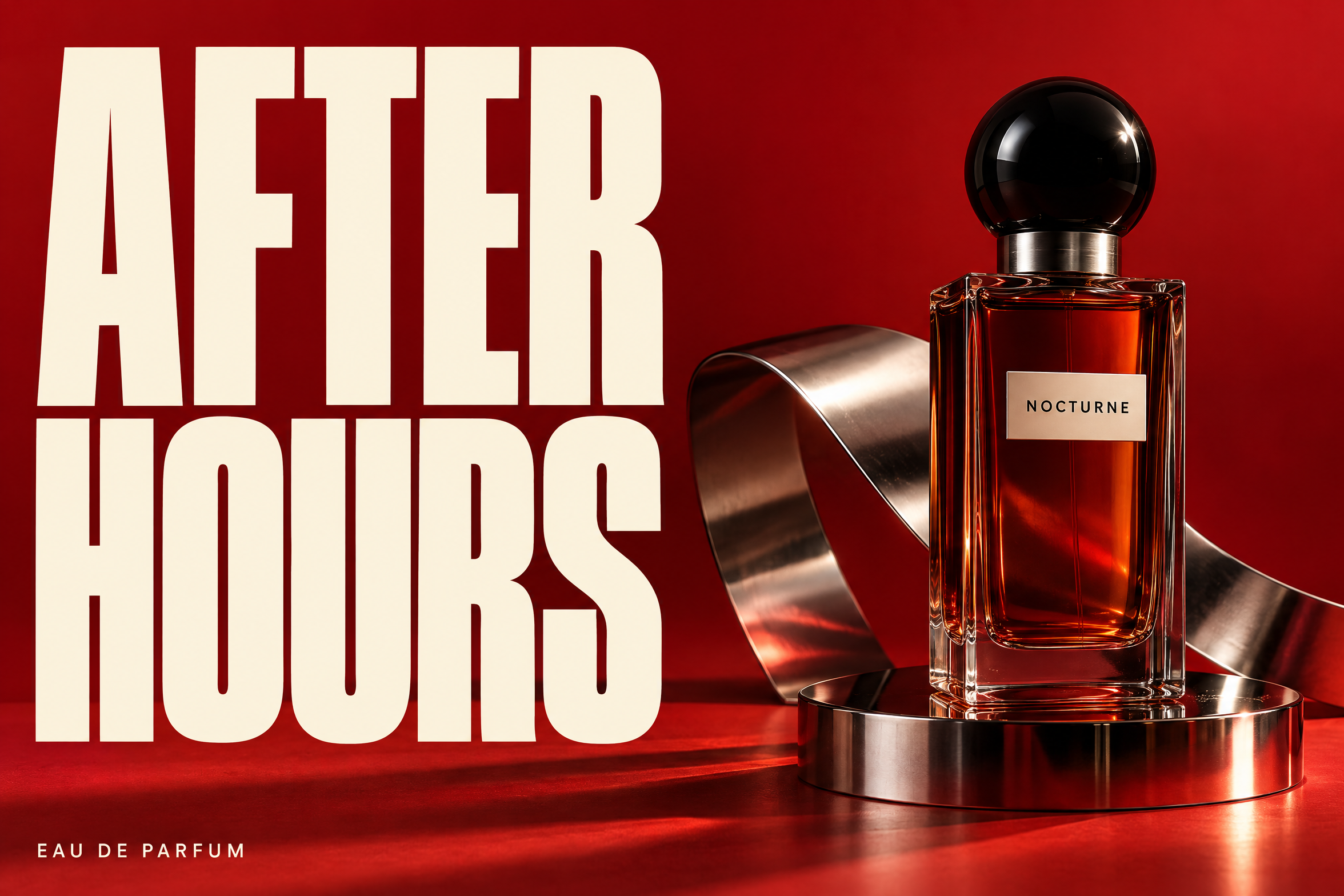
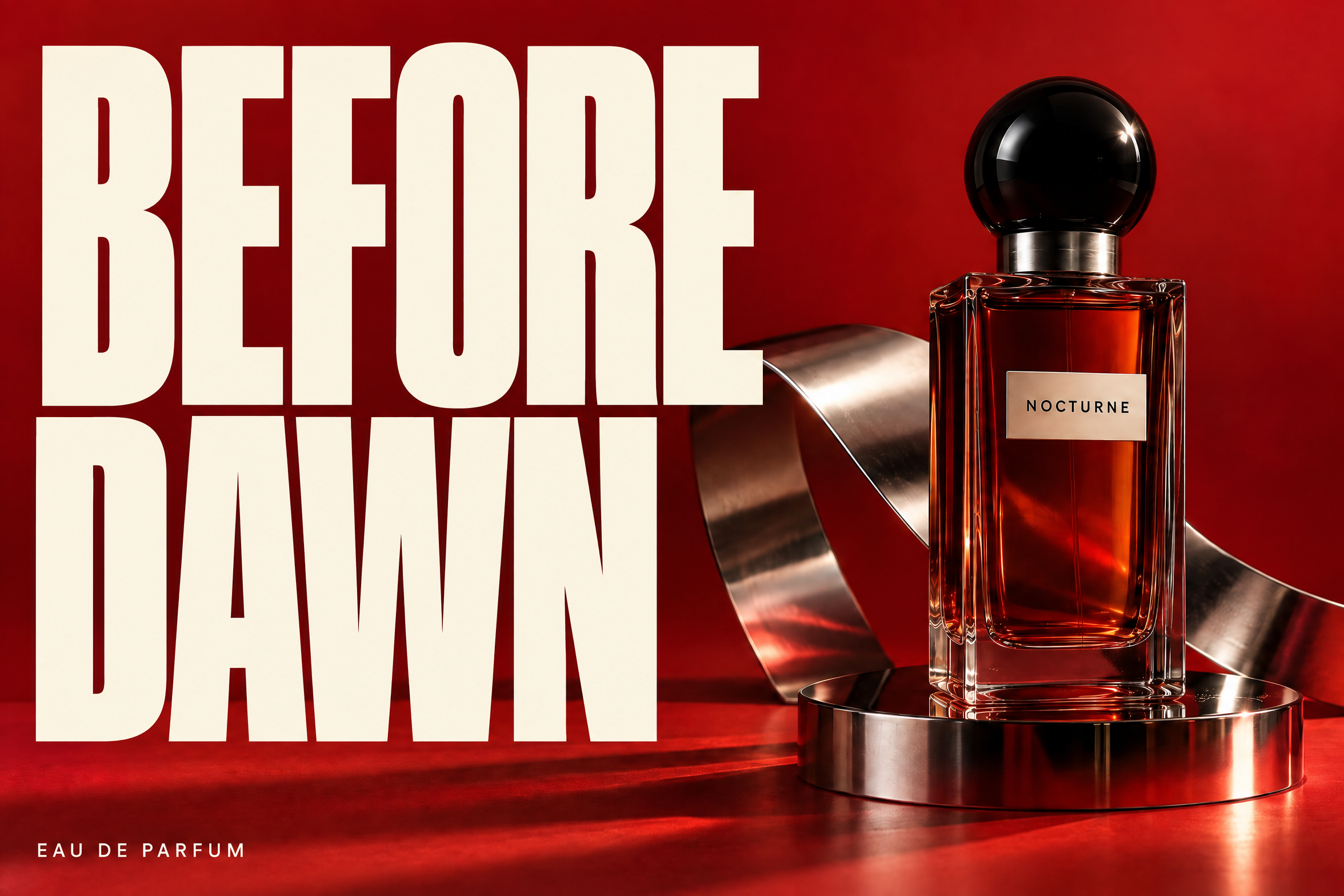
For a fictional fragrance called Nocturne, we used Sunburst to create a vermilion campaign image with an oversized AFTER HOURS headline. We then asked it to replace those words with BEFORE DAWN. The new headline fills the same space beside the bottle, while the black spherical cap, chrome ribbon and red lighting carry through. Two words give the campaign a different hour of the night.
Multiple references: bringing an object into a scene
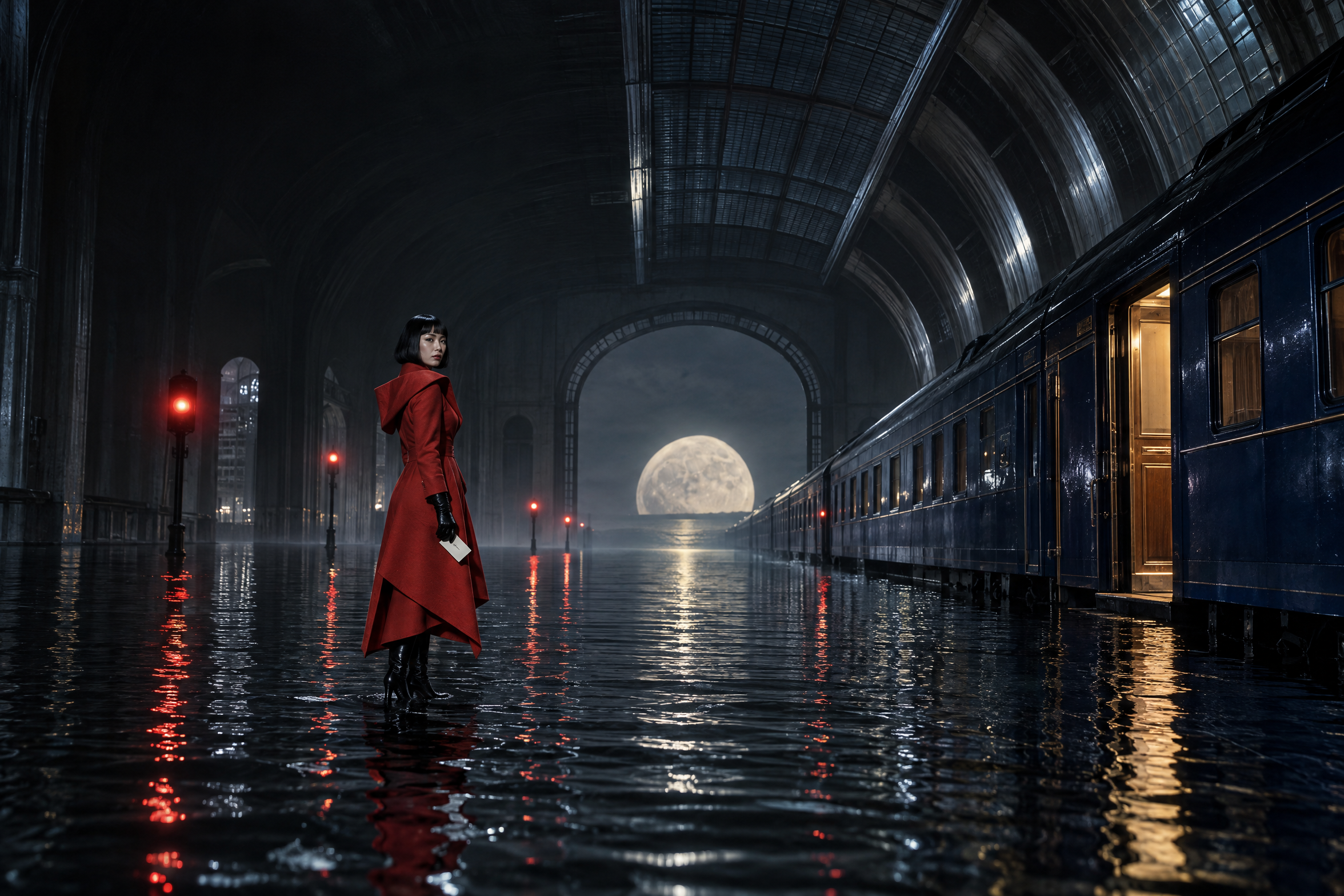
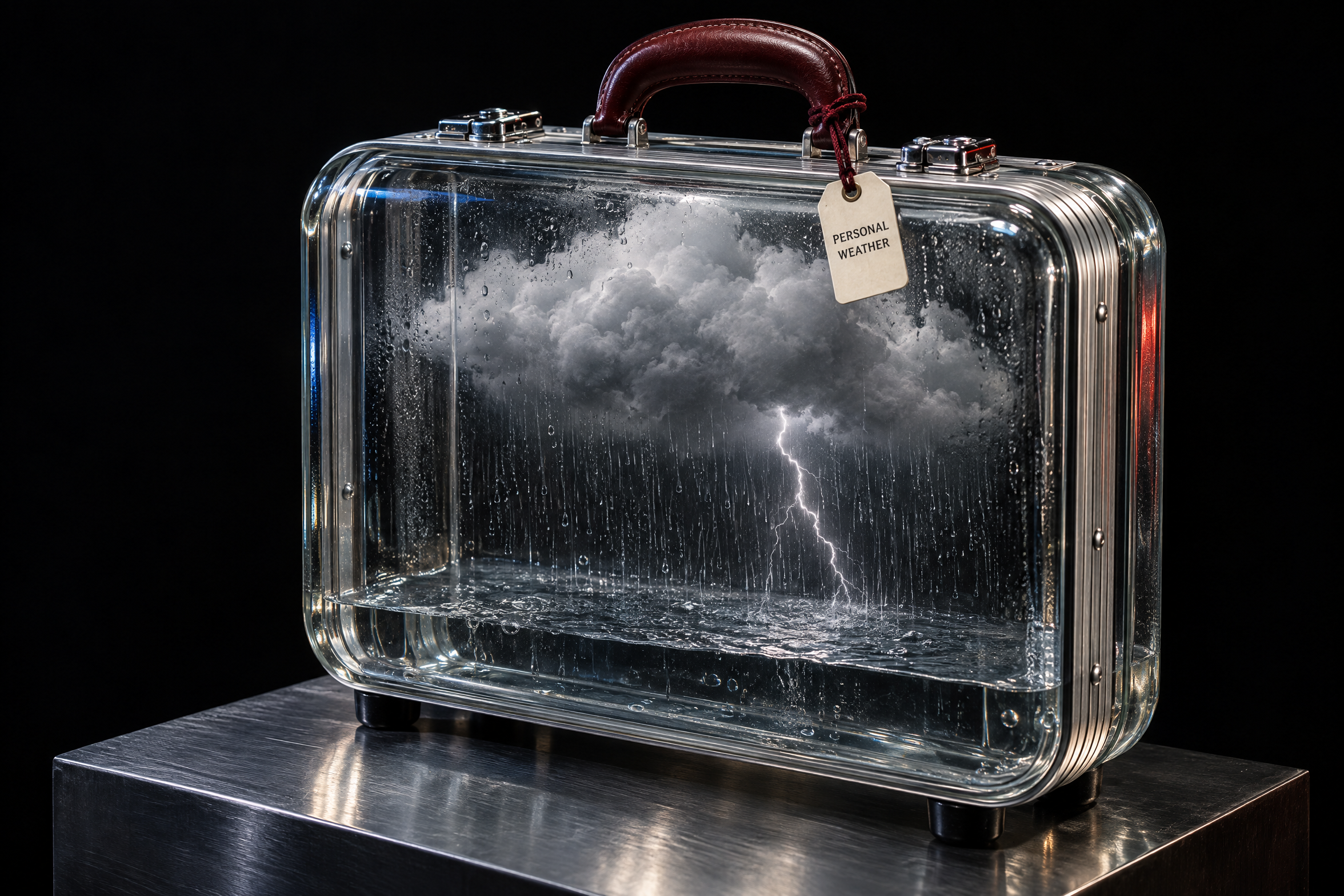
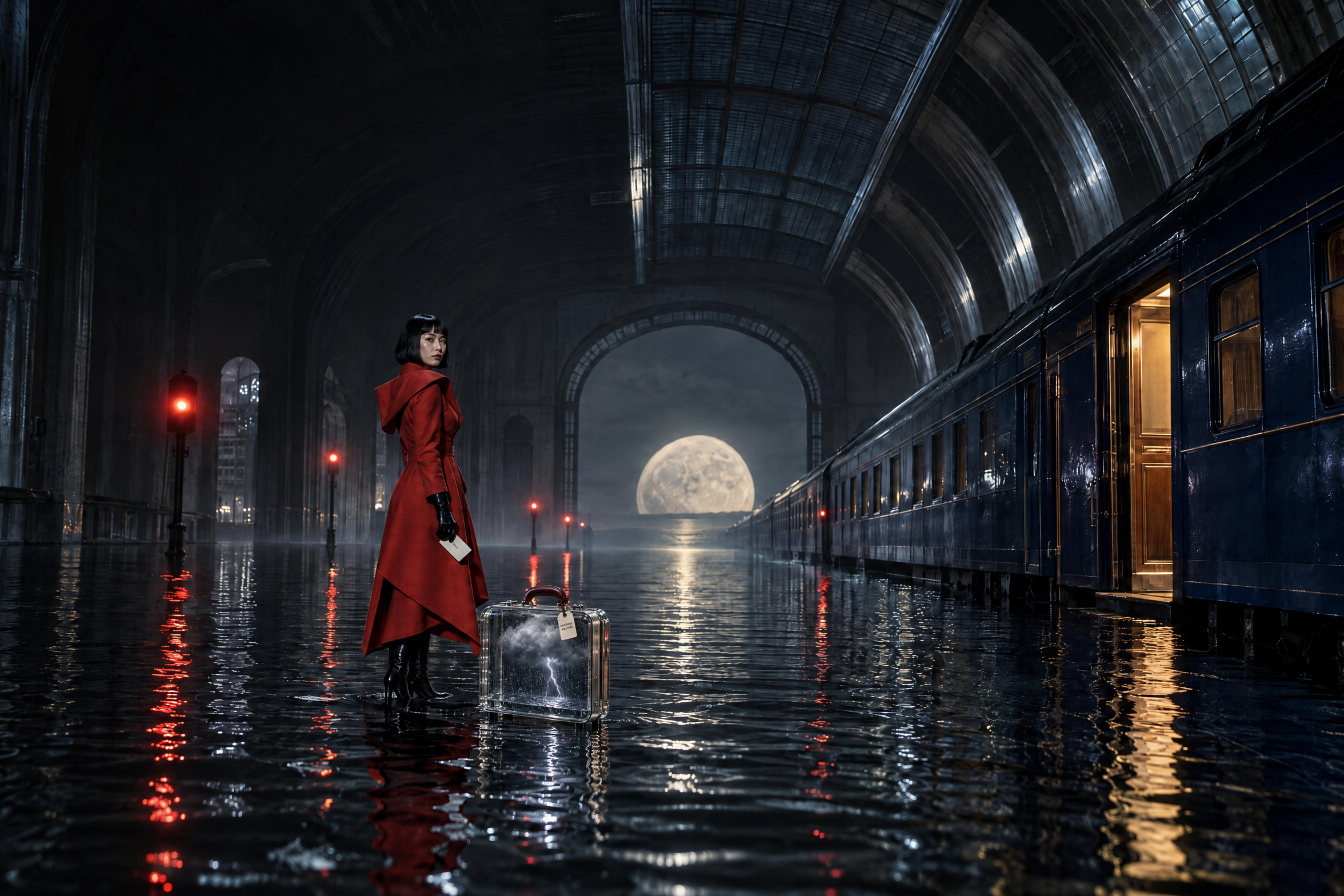
For Elsewhere, a separate fictional fashion campaign, we combined two references. The first supplies the traveler and flooded station; the second supplies a glass suitcase containing a thunderstorm. Sunburst places the suitcase beside her boots, carrying over its silver frame, dark red handle and storm-filled interior. A reflection beneath the case connects it to the water around it.
How to use GPT Image 2.5 in Morph Studio
Open GPT Image 2.5 in Morph to start with a written description or a reference image.
- Describe what you're making, including the composition and style you want.
- Add any references, explaining what to use from each one.
- Choose the model and output settings available in the interface, then review the credit estimate and generate.
- Check the result. To refine it, use that image as a reference and describe the next change.
Writing a GPT Image 2.5 prompt
For a new image, describe the subject, setting and composition, including any words that need to appear. For an edit, be specific about the change. Our fragrance campaign edit began with:
Replace the large headline AFTER HOURS with BEFORE DAWN. Set BEFORE on the first line and DAWN on the second, keeping the same ivory color, tall condensed type, left alignment and overall headline area.
We also asked it to preserve the bottle, label, lighting and chrome backdrop. Naming both the change and the elements to keep gives the model a clearer brief.
Frequently asked questions
Can I combine multiple reference images?
Yes. Add your references in Morph and describe what each contributes, such as a person, a product or a setting. The example above uses two references to place a separately designed object into an existing scene.
Which resolution and quality settings can I choose?
Morph offers 1K, 2K and 4K resolution settings, with five quality options: Low, Medium, High, Xhigh and Max. Choose the aspect ratio to suit the placement, whether you're making a wide campaign image or a portrait-format post.
What does it cost on Morph?
Flare and Sunburst are priced the same on Morph. Your credit estimate depends on the selected settings and references. Review it before generating, and check your plan for the available allowance.
Can I turn the result into a video?
Yes. Use the finished still as the starting frame in Morph's image-to-video workflow, then describe the motion you want to introduce.
Where the next draft can take you
A new headline can change the message of an ad. A reference image can bring an unexpected object into a scene. Both give you ways to develop a picture while keeping the parts that already work.
That is what makes GPT Image 2.5 interesting for creative work. Text, reference images and editing become ways to develop an idea beyond its first version. You can keep refining the composition, compare alternatives and decide which details deserve another pass. Before publishing, check the lettering and any product or character details that need to match a reference.
Start with an image you've wanted to make, or one you've wanted to fix. Give it a next draft in Morph Studio.