
Nano Banana 2.1: Posters, Product Images, and Creative Edits
A headline, a bouquet, and the details of a weekend market can become one poster. A product photo can become the starting point for a different campaign. Nano Banana 2.1 brings image generation and editing to Morph Studio, with text prompts and image references to guide what you make. Here are the abilities worth exploring, with two examples and the prompts behind them.
What is Nano Banana 2.1?
Nano Banana 2.1 is Google's image generation and editing model, following Nano Banana 2. You can describe a new picture, upload images to guide it, or ask for changes to an existing image. Morph Studio offers 1K, 2K, and 4K output, with up to 14 reference images.
What can you do with Nano Banana 2.1?
Put your words into the design
Generate a poster with its headline, illustration, and event information together. You can specify the wording, the size of the headline, and where each line belongs. This is useful when you want to explore how the words and artwork fit together, from a flower-market poster to a product announcement.
Give the model the exact copy in quotation marks and describe its hierarchy: a dominant title, a supporting line, and smaller details. A short, clearly arranged brief also makes the result easier to check.
Shape the lighting and materials
The same subject can take on a different mood under soft window light or direct afternoon sun. Describe the light source, its direction, and the materials you want to see: amber glass, brushed metal, folded fabric, or pale stone. These details give a product concept or portrait a clearer visual direction.
For campaign images, include the framing and any space you need for copy. A bottle on the left with an open area on the right is a more useful brief than asking for an attractive product photo alone.
Build an edit around your references
Use a reference image to show the product, person, garment, or setting you want to work with. Then describe what should change. You might move a perfume bottle into a daylight scene, try a coat in another color, or place a character in a new location.
With several references, give each one a role: the subject from the first image, the clothing from the second, and the setting from the third. Name the details that matter, such as a label, collar shape, or hairstyle, so you can compare those details with the result.
Two creative examples
We used Nano Banana 2.1 to create a flower-market poster and develop a new setting for a fictional perfume. Use the prompts below as starting points, replacing the subject and copy with your own.
A flower-market poster with a clear hierarchy
For STILL IN BLOOM, we asked for a bold headline, a floral illustration, and three lines of market information. The result spells all five lines correctly. Deep-blue lettering anchors the page, while orange poppies and pale pink anthuriums gather around a blue glass vase. A flower overlaps the lower edge of BLOOM, connecting the illustration to the title.
The composition has a clear reading order: headline, bouquet, then date and venue. The warm ivory background gives the colored shapes room to stand out.
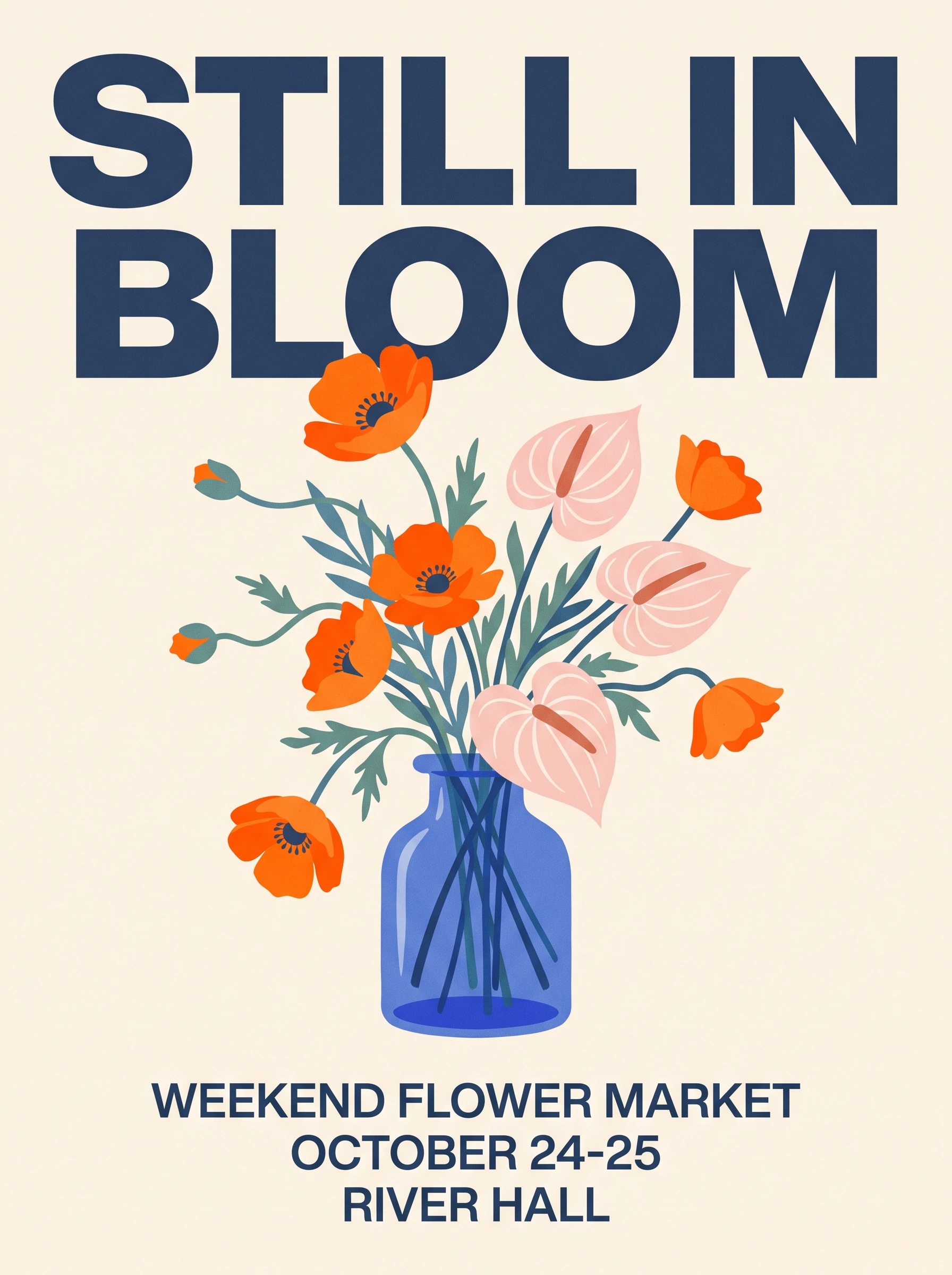
Prompt:
Create flat, full-bleed artwork for a contemporary flower-market poster, portrait format. A sculptural bouquet of orange poppies and pale pink anthuriums sits in a cobalt-blue glass vase against a warm ivory background. Bold editorial typography, generous margins, subtle paper grain, a restrained orange, blue, and ivory palette. At the top, set the large two-line headline "STILL IN" and "BLOOM" in heavy dark-blue sans-serif letters. Below the bouquet, set exactly three centered lines: "WEEKEND FLOWER MARKET", "OCTOBER 24-25", and "RIVER HALL". Keep the headline, bouquet, and information clearly separated. Make all five lines readable. Deliver the poster artwork itself, filling the frame edge to edge.
Suggested format: 3:4, 2K.
A familiar product in a different campaign
We used the fictional Nocturne perfume bottle from our earlier campaign artwork as a reference. The original pairs an amber bottle with a black spherical cap, red lighting, and a chrome backdrop. For this version, we asked Nano Banana 2.1 for pale stone, warm daylight, and room for copy beside the bottle.
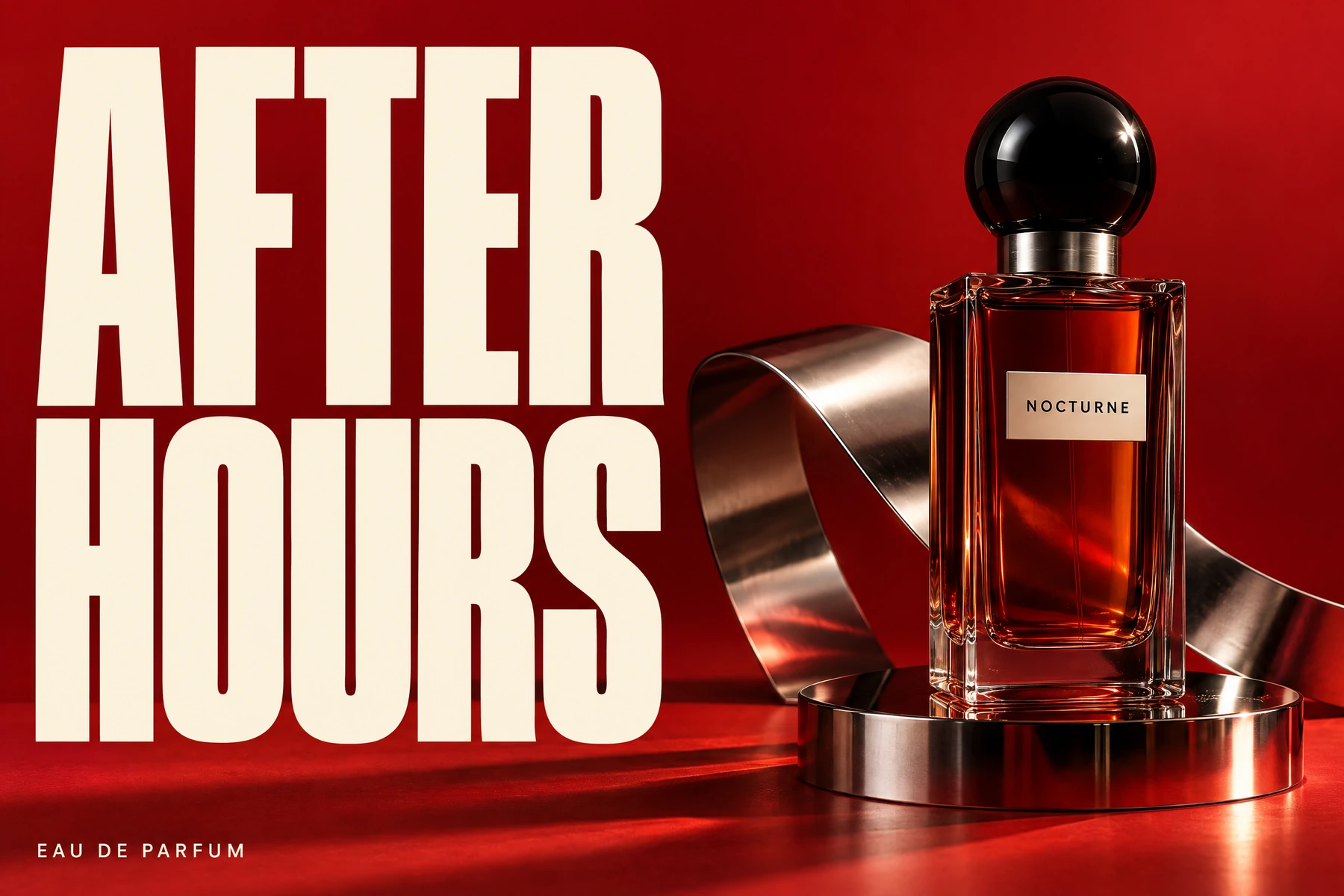
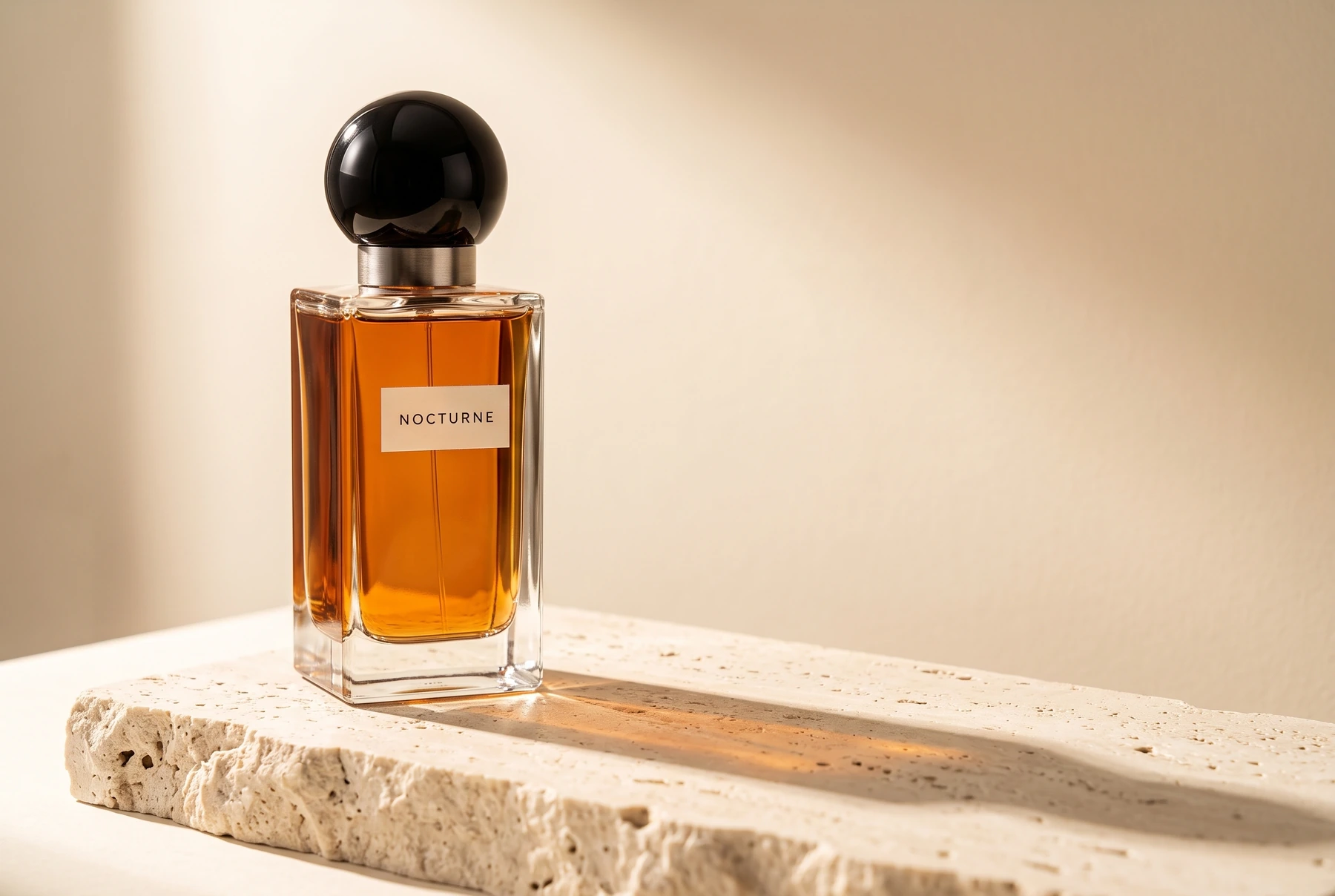
The new image places the bottle on the left and opens up the right side for copy. Light passes through the amber glass, and a long shadow follows the stone surface toward the lower right. The black round cap and readable NOCTURNE name carry through, giving the campaign a recognizable product.
The bottle's shoulder contours and label position have shifted. Those details matter when a picture needs to match a finished product; compare them with the original as you develop the concept.
Prompt:
Use the perfume bottle in the reference image as the product reference. Create a new landscape campaign photograph: the same rectangular amber-glass bottle with its thick clear-glass base, glossy black spherical cap, brushed-metal neck, and ivory "NOCTURNE" label stands on a pale travertine plinth. Place the bottle in the left half of the frame. Warm sunlight comes from the upper left, passes through the amber glass, and casts a long soft shadow toward the lower right. The background is a smooth ivory wall, and the right third is open space for later campaign copy. Retain the bottle proportions and the readable "NOCTURNE" label. Use the bottle alone from the reference and rebuild the setting in this warm ivory palette. The only lettering in the new image is the product label.
Suggested format: 3:2, 2K, with the product image as a reference.
Get a useful first result
Choose one clear goal for your first image: a headline and layout, a lighting direction, or a change of setting. Include the details that determine whether the result will work for your project. For a reference edit, compare the new image with the original before taking it into the next revision.
How to use Nano Banana 2.1 in Morph Studio
- Choose Nano Banana 2.1 in the Image Generator.
- Describe the image or edit you want. Add references and explain what to use from each one.
- Choose an aspect ratio and 1K, 2K, or 4K resolution. Review the credit estimate and generate.
- Check the lettering and the subject details that matter to your project. Download the result, or use it as a reference for the next edit.
Frequently asked questions
Can Nano Banana 2.1 generate readable text in an image?
Yes. In our flower-market example, all five requested lines were spelled correctly. Put your exact wording in quotation marks and describe the size and placement of each line. Check spelling and readability in the finished image before using it.
How many reference images can I use?
Morph Studio supports up to 14 reference images with Nano Banana 2.1. Give each image a purpose, such as the subject, clothing, or setting. Start with the references your idea needs and explain how they should work together.
Can I use Nano Banana 2.1 to change clothes in a photo?
Yes. Upload the photo and describe the new outfit, including its color, material, and fit. State what to keep, such as the person's face, pose, and background. Compare those details with the original after generating.
How can I keep my product recognizable in a new setting?
Use a clear product reference and name the shape, materials, label, and proportions that matter. Our perfume image kept the amber glass, black spherical cap, and NOCTURNE name, while the shoulder contours and label position changed. When the image needs to match a finished product, compare those details with the original.
Should I use 1K, 2K, or 4K?
Choose the resolution for your intended image size. Both examples here used 2K. Select 4K when you need a larger output, and review the final text and subject details at full size. The credit estimate changes with the resolution and reference images you choose.
How do I write a good prompt for an image or edit?
Describe the subject, setting, composition, lighting, and exact text you want. For a reference edit, state the change and the details to keep. If a detail needs another pass, return to the original reference and make a focused request for that area.
Is Nano Banana 2.1 free to use in Morph Studio?
Generating images uses credits. Check your current plan for access and review the credit estimate before generating. The total depends on your output resolution and the number of reference images.
Can I turn the result into a video?
Yes. Upload the finished image to Morph Studio's image-to-video workflow, choose a video model, and describe the movement or camera motion you want to add.
Start with one clear idea: a poster you need, a product you want to present, or an image you want to develop further. Try Nano Banana 2.1 in Morph Studio.