
AI Eye Zoom Challenge
Let a single look pull the viewer closer. Move from a portrait into the eye and pupil, giving your next character reveal, personal story, or transition a more intimate point of view.

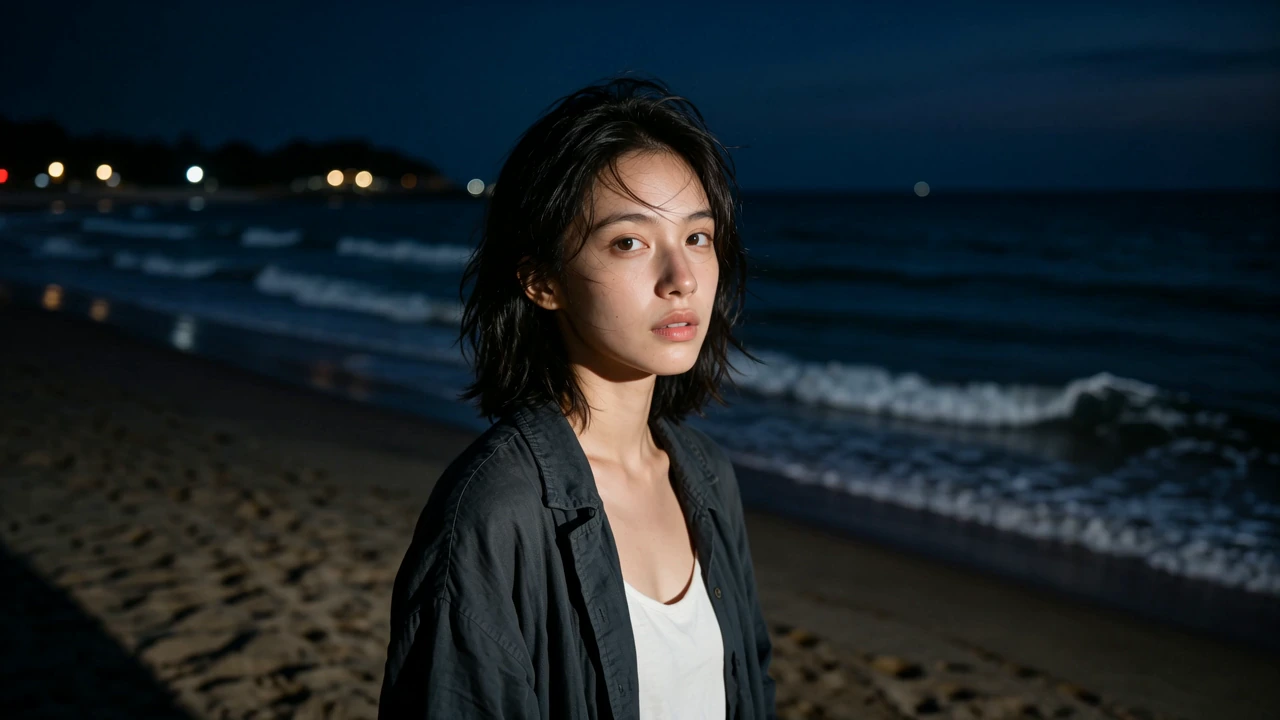
Tell a Story with a Look
Move from the person and their surroundings to the gaze that holds the moment. As the wider scene falls away, the portrait becomes more intimate. Give a character introduction, a quiet story beat, or a moment of suspense a closer connection with the viewer.
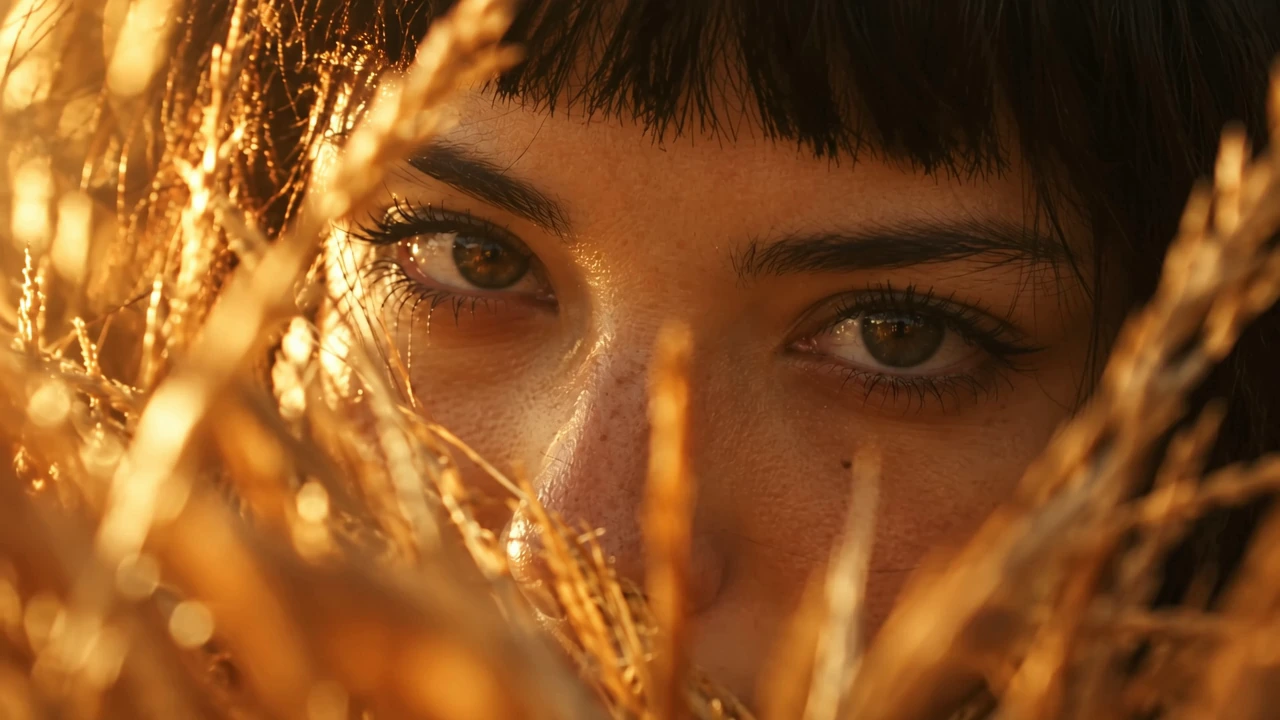
Let Light Bring the Gaze to Life
Warm light across the face and reflections in the eye give a close-up its atmosphere. Let those details carry the viewer from a portrait into a more expressive moment, whether your story feels reflective, mysterious, or quietly cinematic.
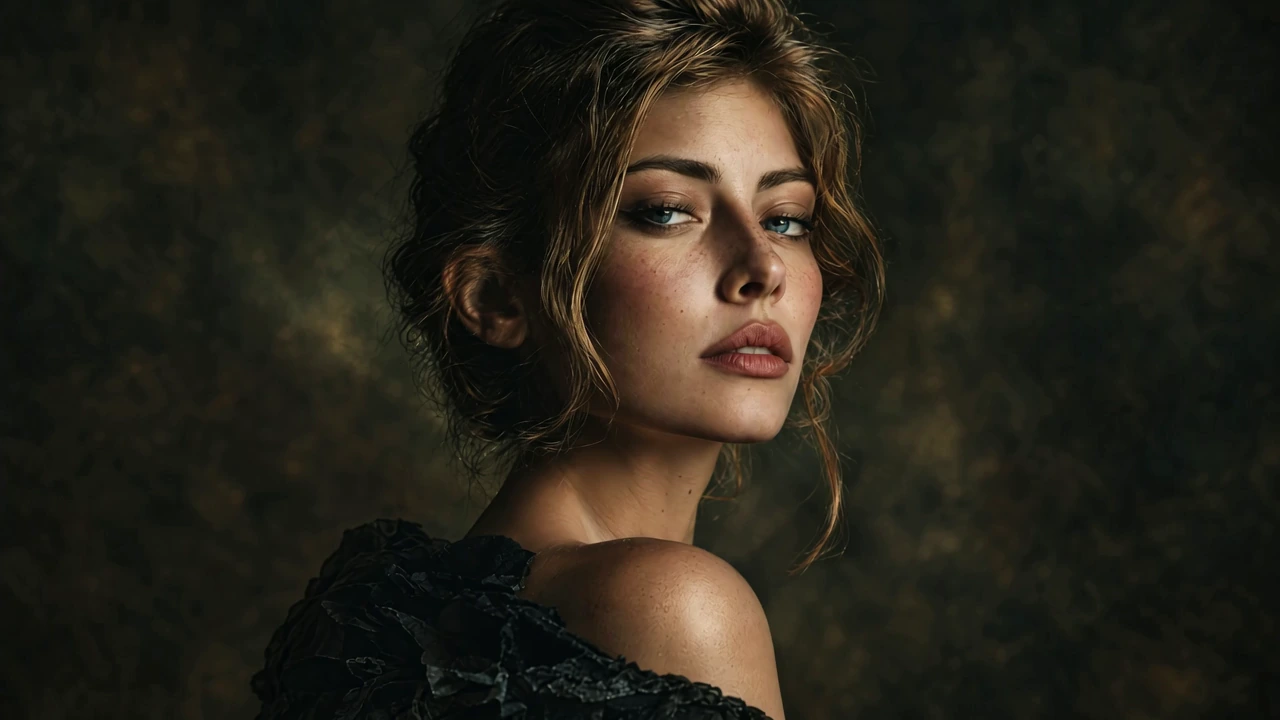
Give Your Next Scene a Dramatic Lead-In
Follow the eye toward its dark center and give the portrait a striking close. Use that change in scale and light to lead into a title, a new scene, or the end of a personal story. Make the gaze part of how the story moves forward.
How to Make an Eye Zoom Video
Start with a clear portrait, add optional details, and create in the app.
Upload a Clear Portrait
Sign in and upload a portrait with a clearly visible eye, free from heavy shadow, glare, or hair across the pupil.
Add Optional Subject Details
Use the prompt for a few visible subject details, or leave it blank. The preset guides the five-second push toward the eye and pupil.
Generate Your Video
Continue to the app with your photo and effect. Choose your output settings, review the current credit quote, and confirm generation. Download the video for your next post or edit.
Find the Next Beat of Your Story
Explore a new way to introduce a subject or reveal a scene.
Take Your Portrait Story Further
Develop another moment or bring more detail to your finished clip.
Give your portrait a new scene and the movement your story calls for.
Create a higher-resolution version of your finished portrait video.
Eye Zoom Challenge Questions
Prepare your portrait and plan the five-second push-in and its ending.
Let Your Next Story Begin with a Look
Bring your portrait closer and give your next video a moment with more feeling.