
Free AI Video Editor
Upload an MP4 or MOV clip and describe the edit you want. Morph Studio helps change backgrounds, replace objects, update scene details, and create video-to-video variations without opening a timeline editor.
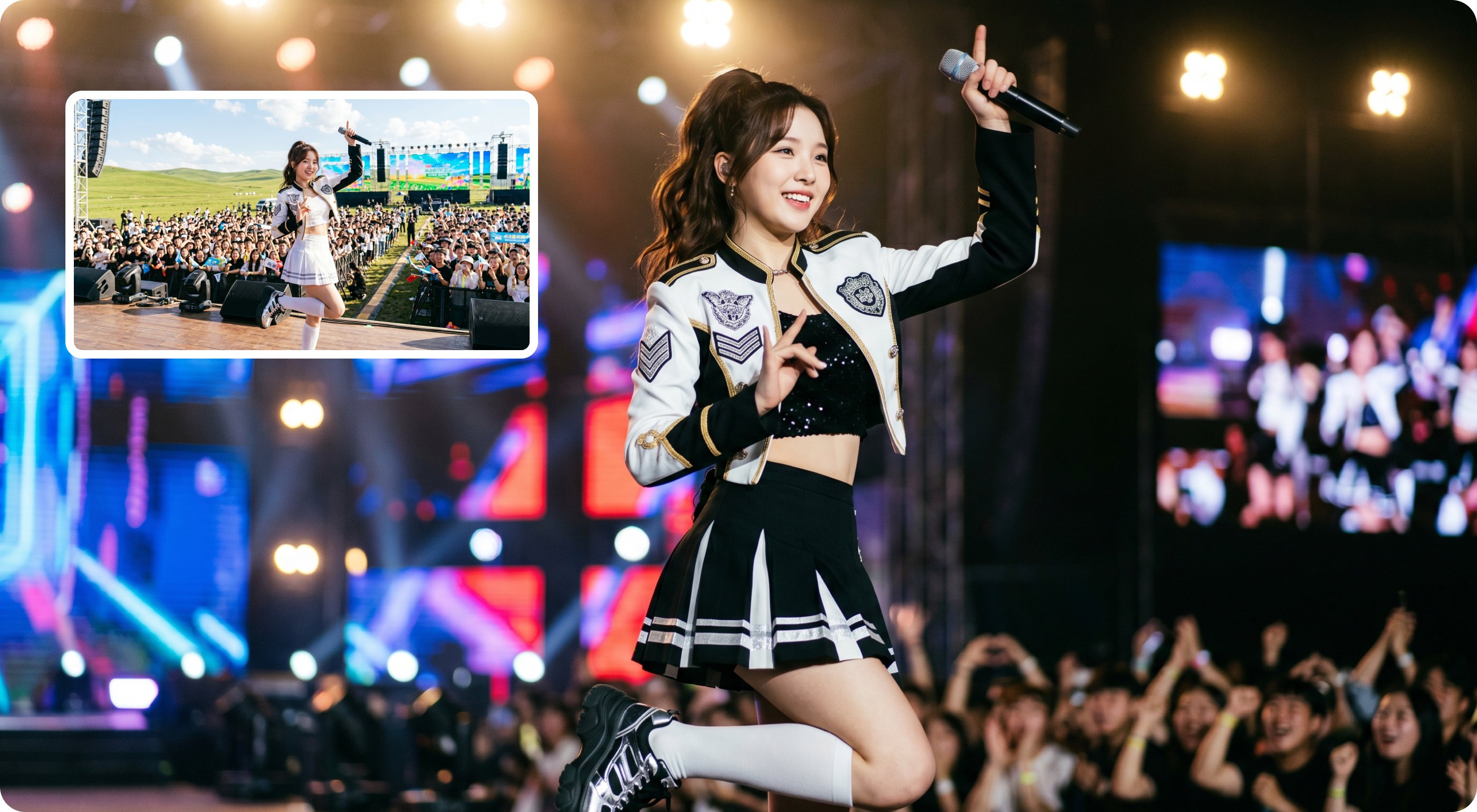
Change Video Backgrounds and Modify Scene Details with AI
Upload an existing clip and use Morph Studio's AI video editor to change the background, venue, lighting, crowd, props, and scene details while keeping the core subject and motion direction. Turn a source video into a concert stage, product scene, fashion setup, cinematic location, or social-ready creative variation with a text prompt and optional reference image. It works like a prompt-based AI video modifier for creators who want visual changes without manual masking, chroma key editing, or rebuilding the shot from scratch.
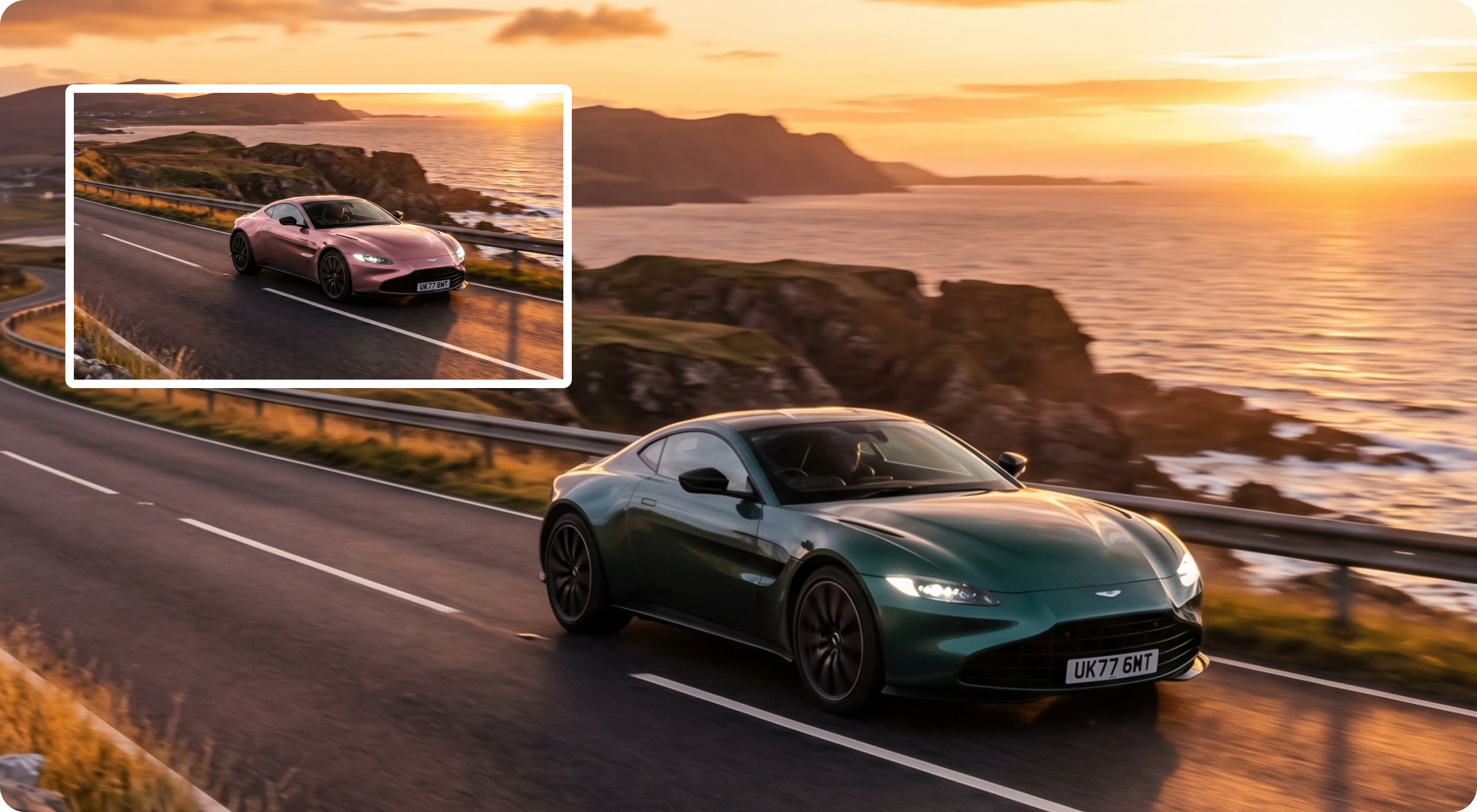
Replace Objects and Product Details in Video
Use Morph Studio's AI video editor to replace objects, adjust product details, change colors, update props, or test a new visual direction while preserving the motion and scene context of the original clip. Turn one car shot, product demo, fashion video, prop scene, or creator clip into multiple versions for ads, social posts, and campaign testing. For watermark cleanup before or after editing, continue with Video Watermark Remover, then polish the result with AI Video Upscaler.
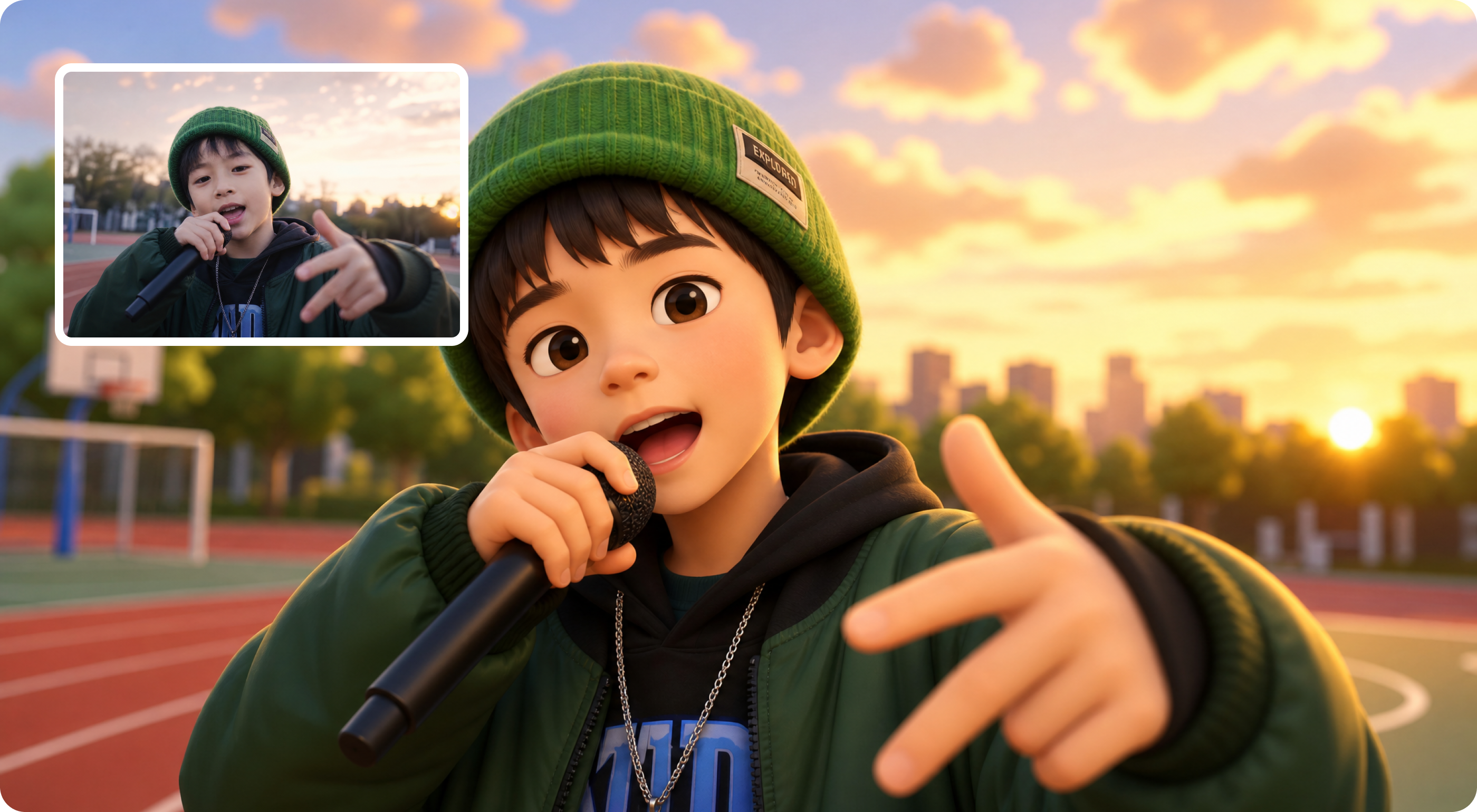
Create Character and Social Video Variations
Turn existing clips into creative variations with Morph Studio's AI video editor. Keep the original pose, gesture, camera framing, and motion direction while adjusting outfits, colors, styling, and visual roles. Use it for TikTok edits, Reels, creator posts, and campaign tests when you want a fresh visual direction from footage you already have. If the clip needs more controlled movement or speech, continue with AI Motion Control or AI Lip Sync.
How to Edit Video with AI
Modify an existing video in three simple steps
Upload Your Source Video
Upload the MP4 or MOV clip you want to edit. Choose a short video with a clear subject, stable motion, and a specific part you want to change, such as the background, object, outfit, lighting, location, or overall scene direction.
Describe the Edit
Write a clear prompt for the change you want. You can ask Morph Studio to change background, remove an object, replace a prop, adjust a person or character look, create a green screen-style background change, or morph the clip for TikTok, Reels, ads, or product content. Add a reference image when you want stronger control over style, subject, product, or scene direction.
Generate and Refine
Click generate and review the AI-edited video. If the first version is close but not final, refine your prompt, adjust the reference, or create another variation. Download the result or continue in Morph Studio with upscaling, watermark removal, image-to-video, lip sync, or other video tools.
Explore More AI Video Tools
Create, edit, enhance, and finish videos inside Morph Studio
Explore Related Tools
Build a complete AI video workflow around your edited clip
Frequently Asked Questions
Everything you need to know about editing video with AI.
Try AI Video Editor on Morph Studio
Modify existing video clips with Morph Studio's AI video editor. Morph natural language prompts and reference images into background changes, object replacements, scene detail adjustments, and character style updates inside a fast creator workflow.