GPT Image 2.6 AI Image Generator
Create product campaigns, expressive character art, and bold posters with GPT Image 2.6. Guide PNG images with your own references, turn a written idea into a playful GIF, or generate SVG graphics that stay crisp from an app icon to a printed poster. Explore a visual direction, refine the details, and give your next project a look of its own.
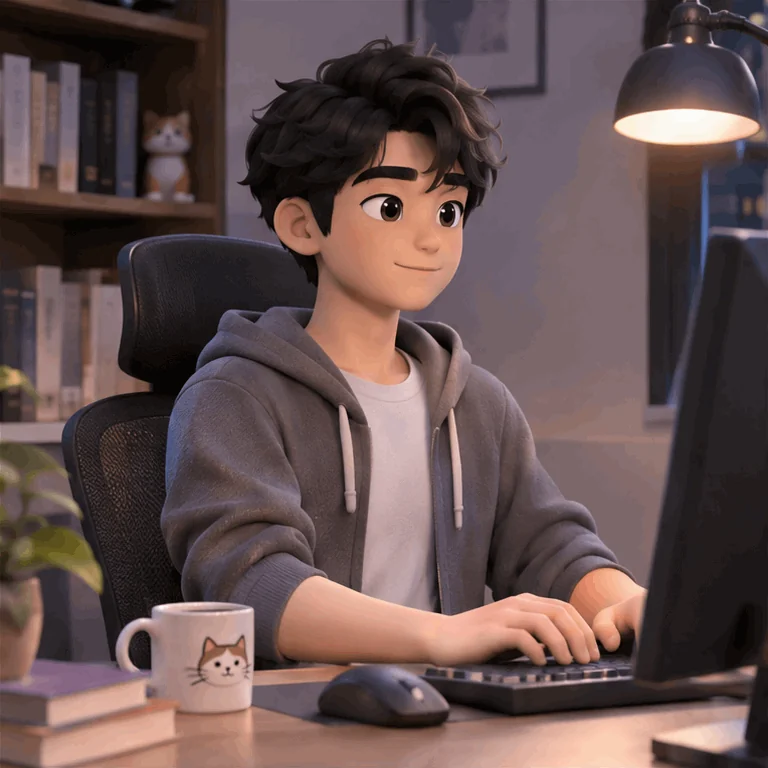
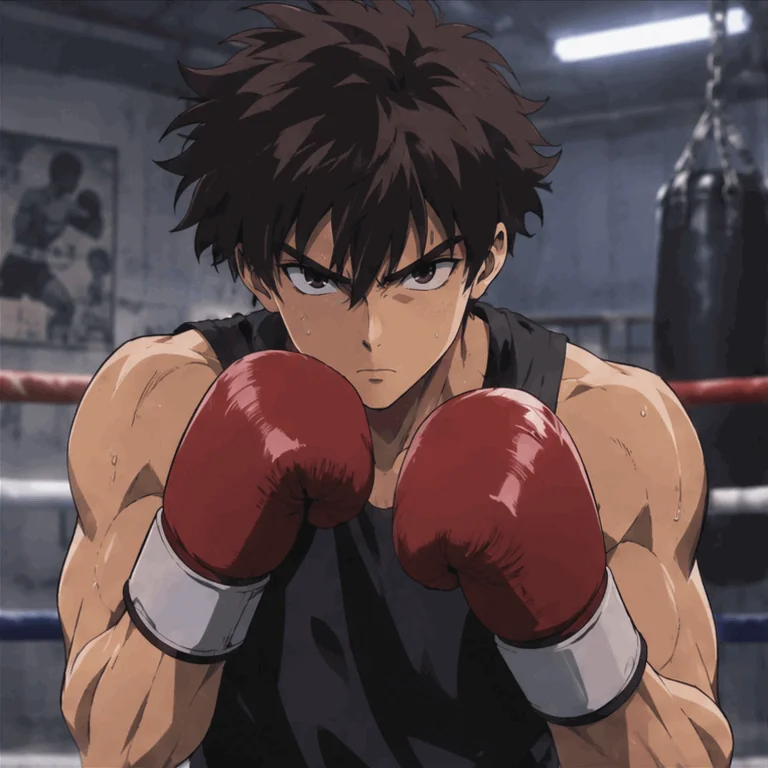
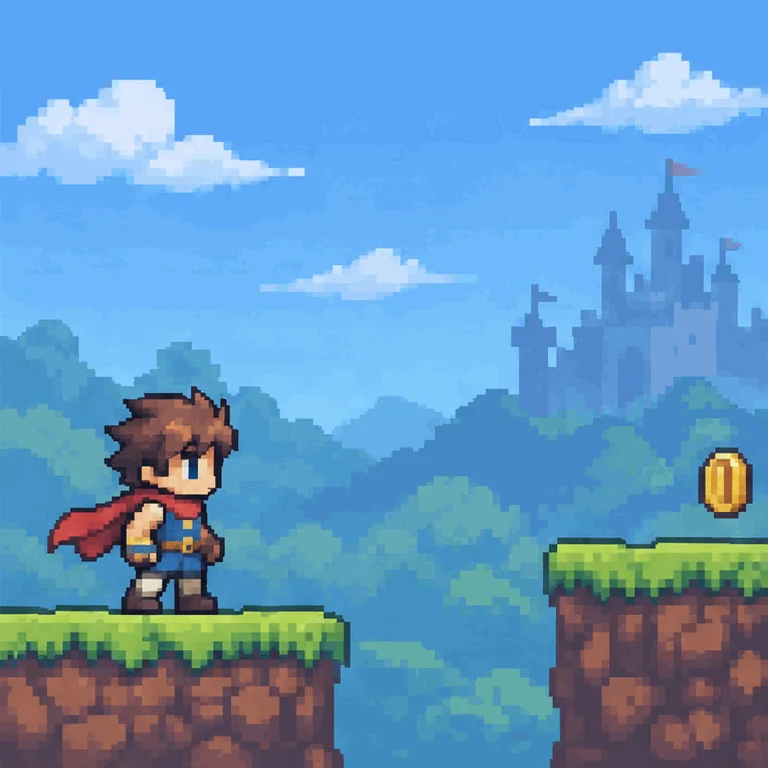
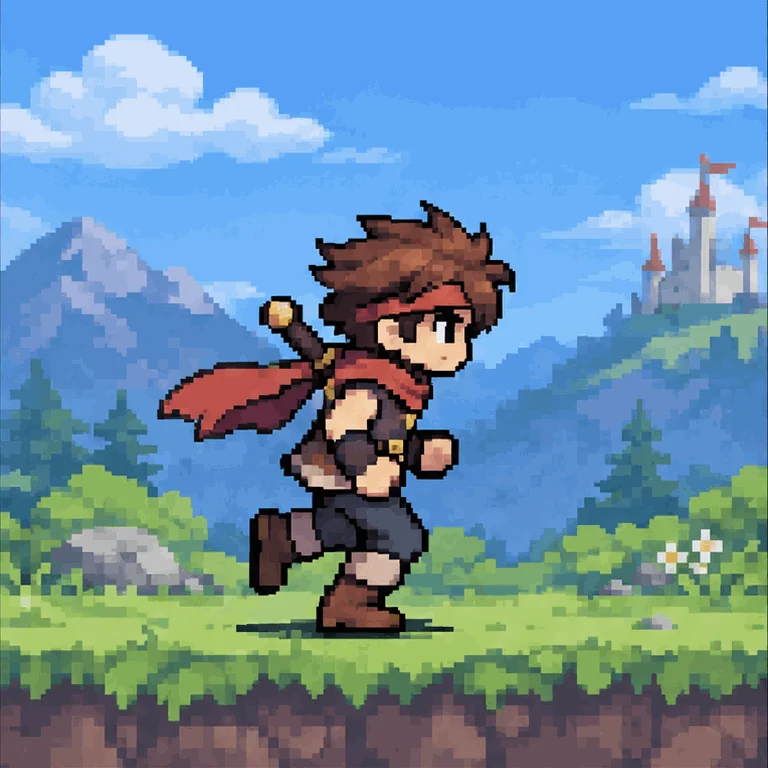
Give Your Ideas a Little Motion
Give a character a cheerful wave, make a reaction worth replying with, or add a flicker of movement to a product scene. GPT Image 2.6 creates short GIF animations from a text prompt, bringing personality to social posts, campaign graphics, and chat reactions. Describe the action and setting, then adjust the animation's pace to find the right feel for your loop.
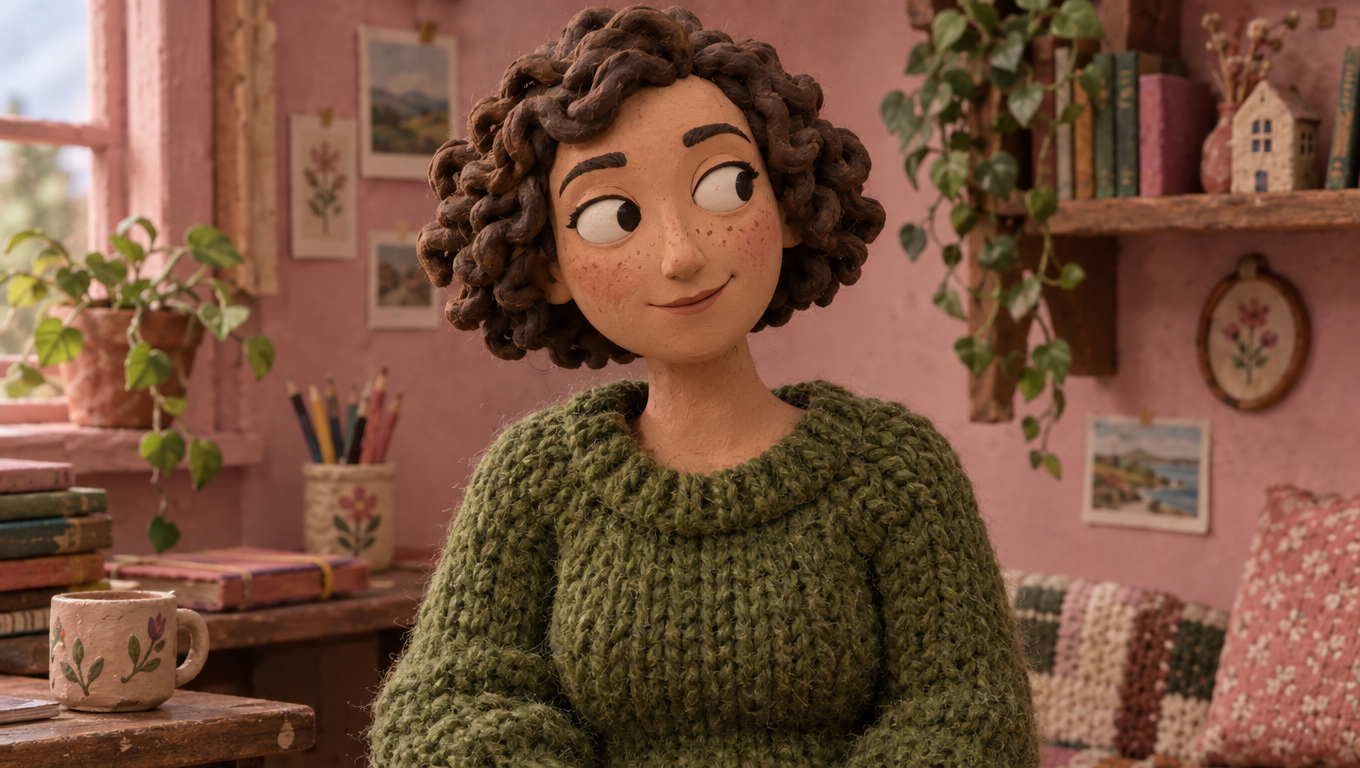
One Product or Character, More Creative Possibilities
Build a campaign around a product people recognize or take a character into a new visual world. Use reference images for image-to-image editing, changing the backdrop, lighting, outfit, or style of a PNG image. Try a polished studio shoot, a summer launch poster, or a handmade storybook scene while keeping the subject's defining details in focus. Combine your subject with a headline and a considered layout to give the whole image a clear creative direction.
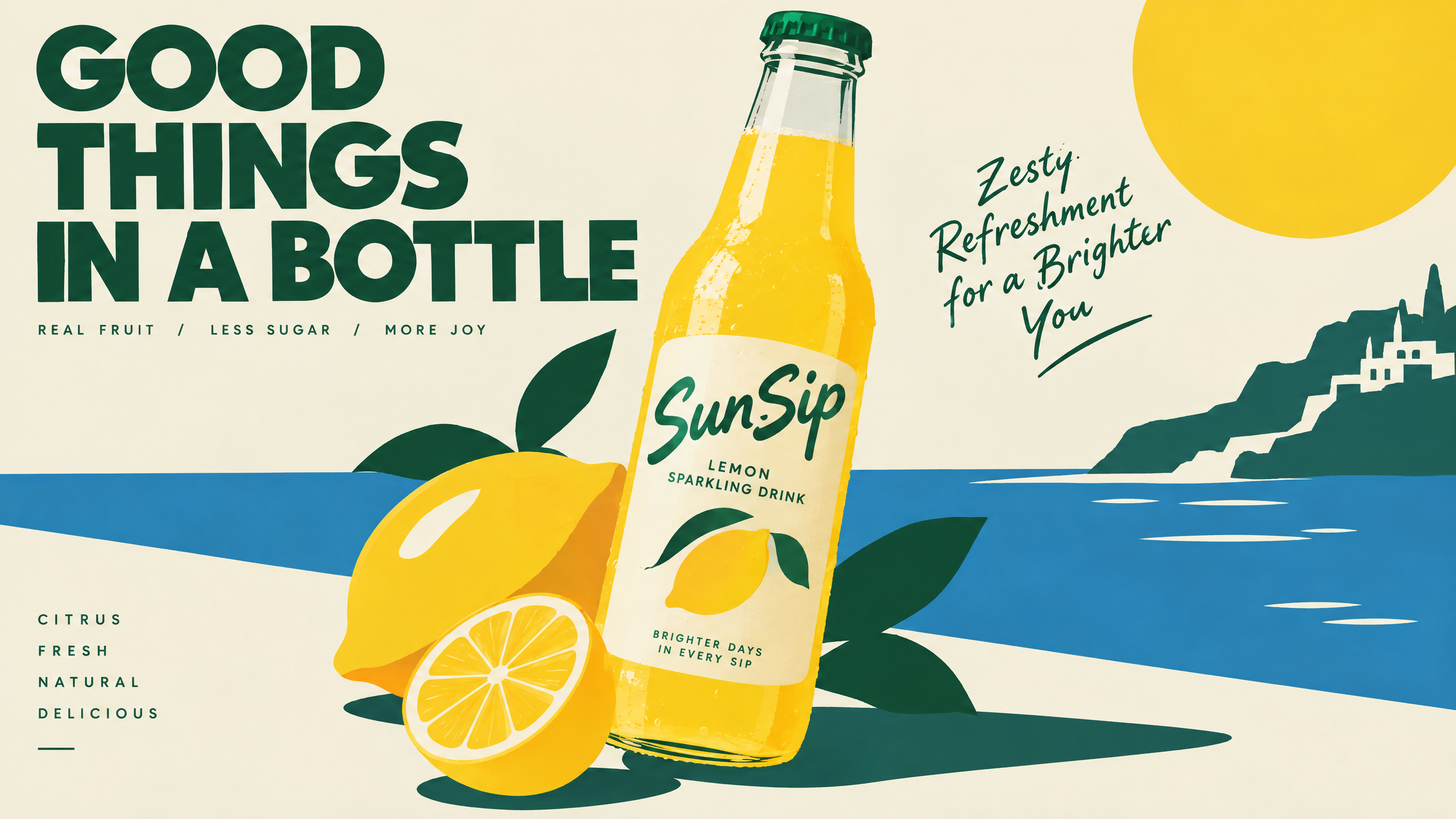
Create SVG Graphics That Scale with Your Project
Create the small graphics that give a brand its character: a playful logo concept, a matching set of icons, or an illustrated badge for a launch. GPT Image 2.6 generates SVGs from text descriptions, giving you vector artwork you can scale for a website, app, or print layout. Describe the shapes, colors, and lettering, then download the SVG to keep refining it in compatible vector design software.
Create with GPT Image 2.6 in 3 Steps
Take your idea from a written brief to an image, animation, or vector graphic
Describe What You Want to Create
Write your subject, setting, style, and composition. For PNG images, add references to guide a product, character, or visual style. Include the exact wording for any headline or lettering.
Choose PNG, GIF, or SVG
Select PNG for still images and reference-based edits, GIF for a short animation, or SVG for scalable graphics. For GIFs, open Animation Preset to adjust the frame count and frame duration.
Generate, Review, and Download
Generate your result and review the details, layout, or movement. Refine your prompt to explore another version, then download your favorite. Find your creations again in the image workspace and Library.
Explore other features
Discover more AI-powered creative tools from Morph Studio
Explore other features
AI-powered creative tools for every need
Frequently Asked Questions
Creating images, animated GIFs, and SVG graphics with GPT Image 2.6
Give Your Next Idea a Look of Its Own
Create a product visual, an expressive GIF, or a scalable brand graphic. Bring your next campaign or character concept into focus with GPT Image 2.6 in Morph Studio.