Free AI Object Remover

Remove unwanted objects and people from photos online with Morph Studio's free AI Object Remover. Upload a photo, brush over what you want to erase, and let AI fill in the selected area to match the surrounding image.

Upload your image here

Cleaner Photos Without Distractions

Remove photobombers, signs, wires, props, and other unwanted objects from photos you already have. Keep the focus on people, places, and moments without cropping the image or rebuilding the composition.

Get Started Now

Product Photos Ready for Stores and Campaigns

Remove cables, stands, packaging clutter, and distracting props from product photos. Turn existing images into store-ready visuals for product pages, ads, campaigns, and brand content.

Get Started Now

Polished Travel and Social Photos

Remove tourists, street signs, trash cans, and other distractions from travel shots and everyday photos. Prepare cleaner images for social posts, profile pages, photo albums, and personal projects.

Get Started Now

AI Object Remover Examples

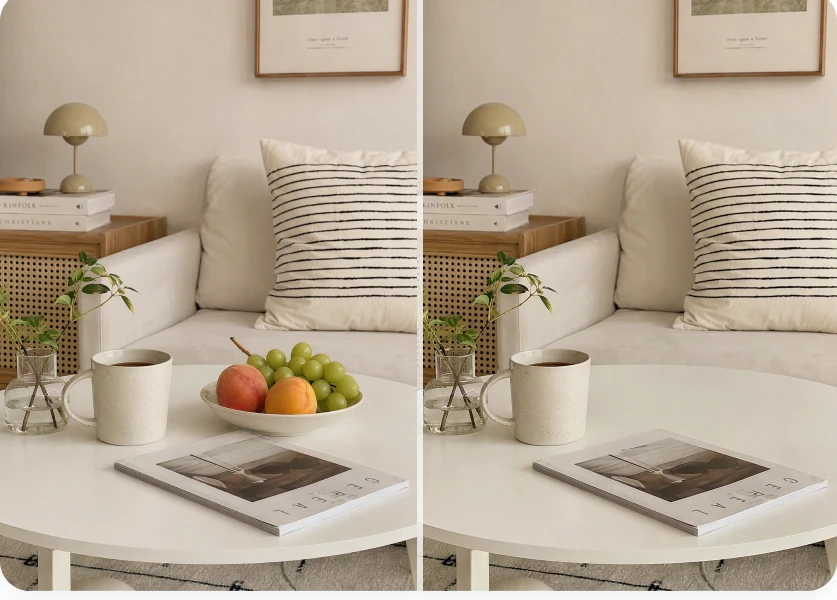
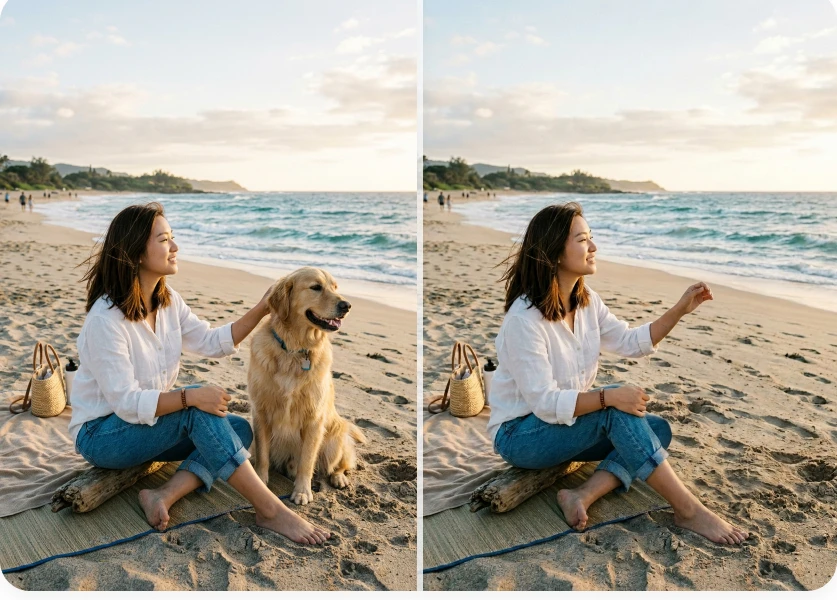
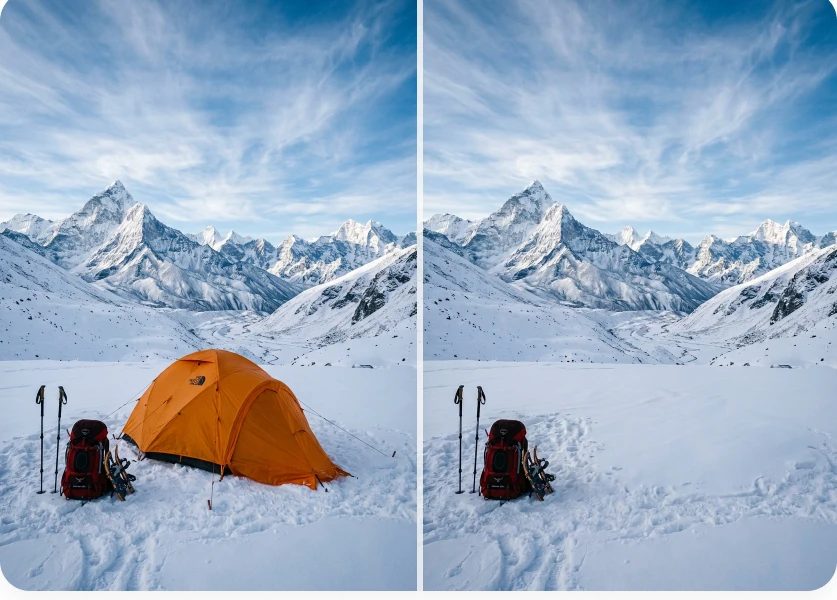
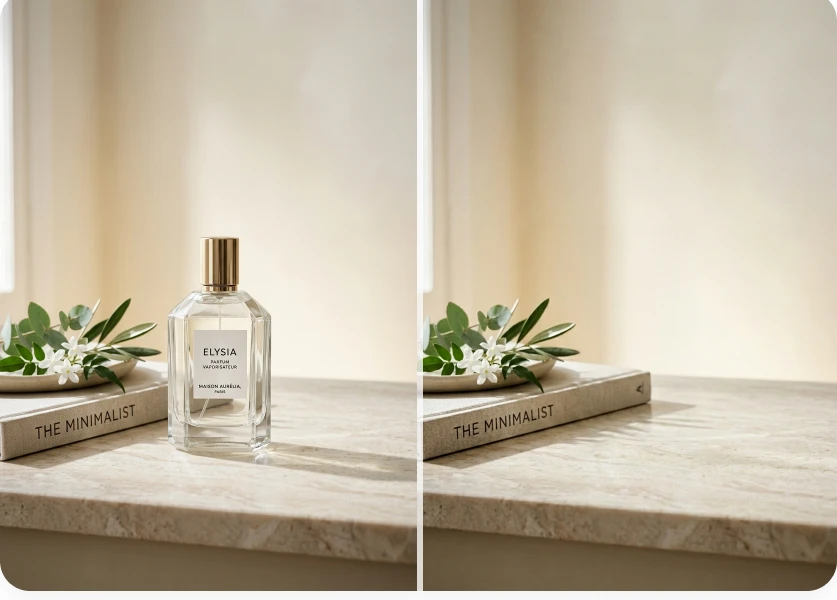
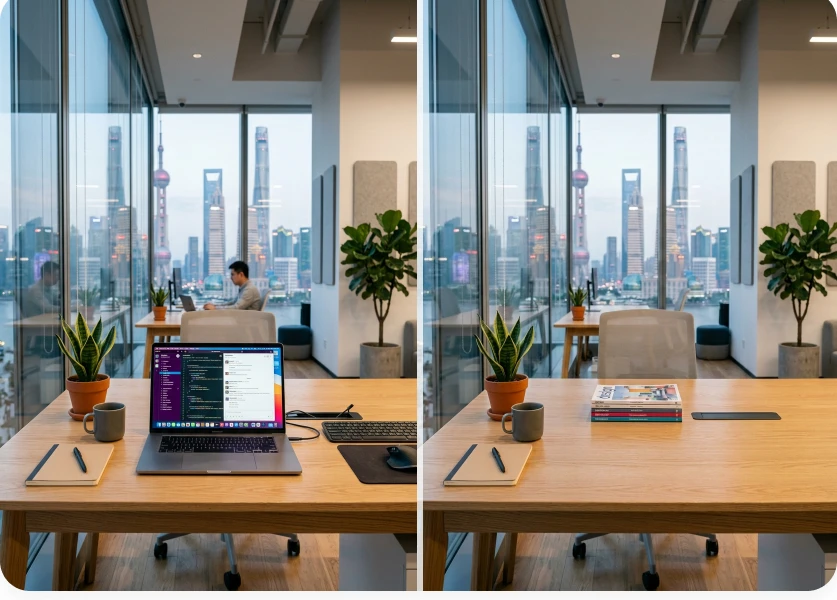
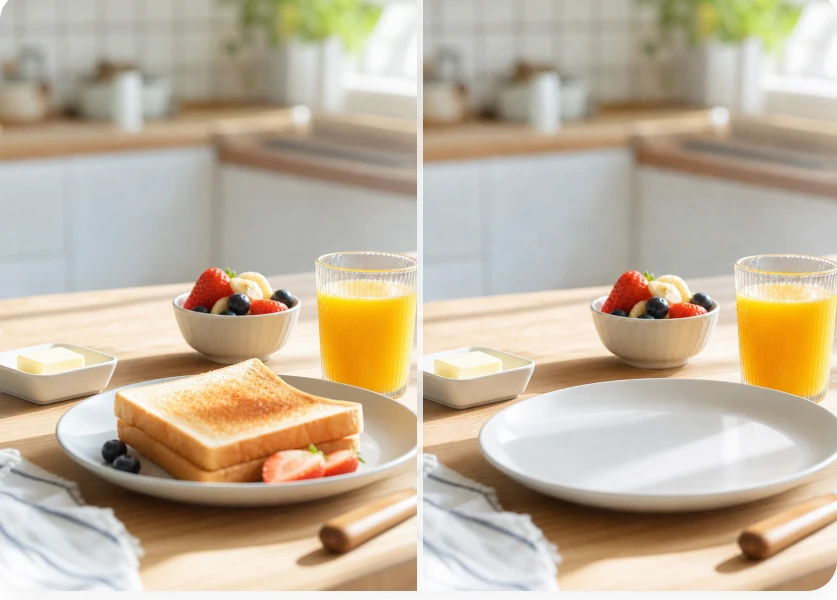
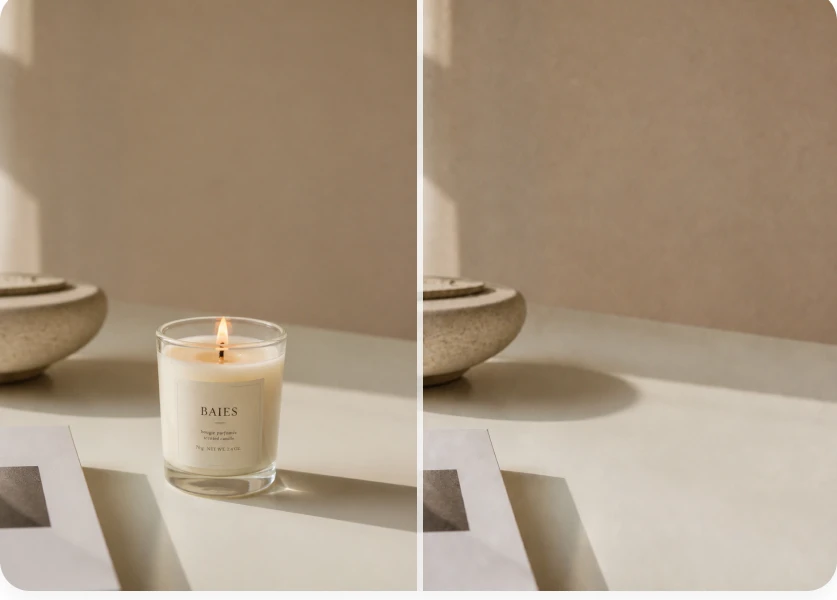
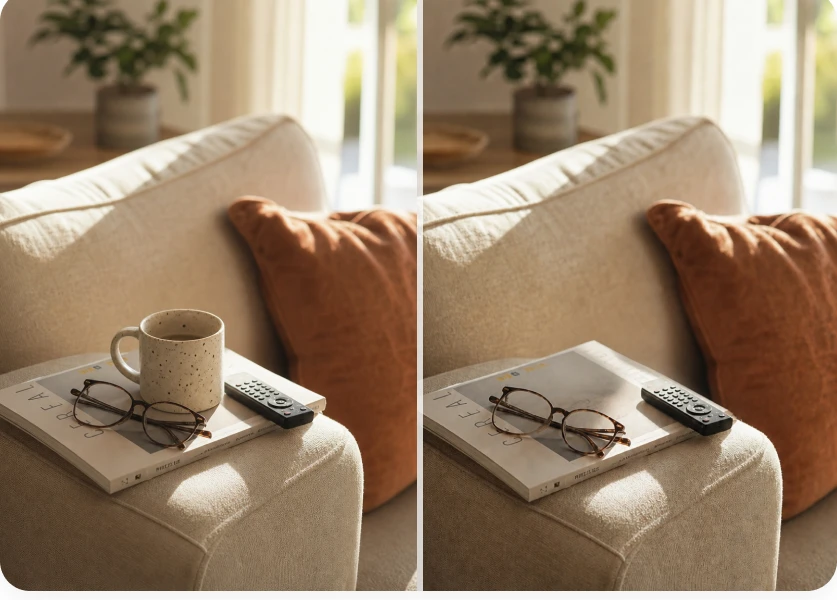
See unwanted people, props, signs, wires, and background distractions removed from everyday photos.
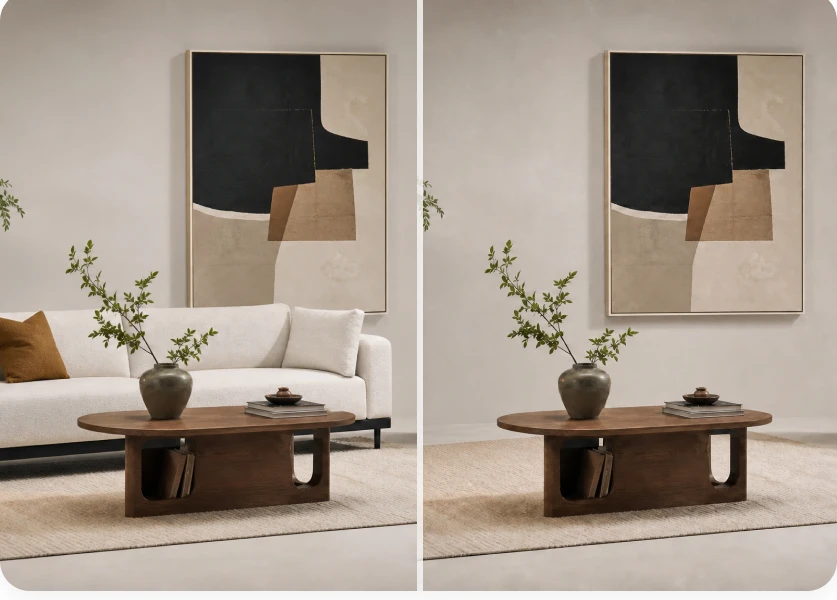
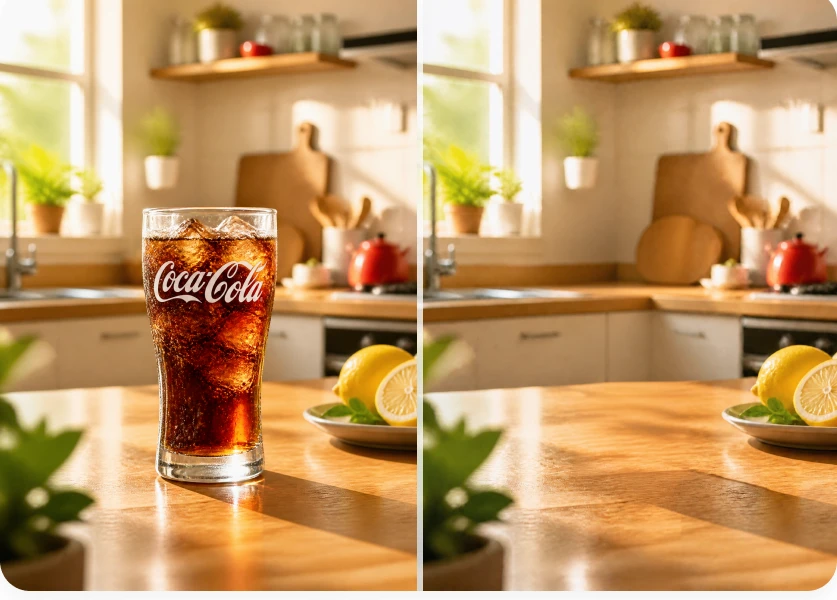
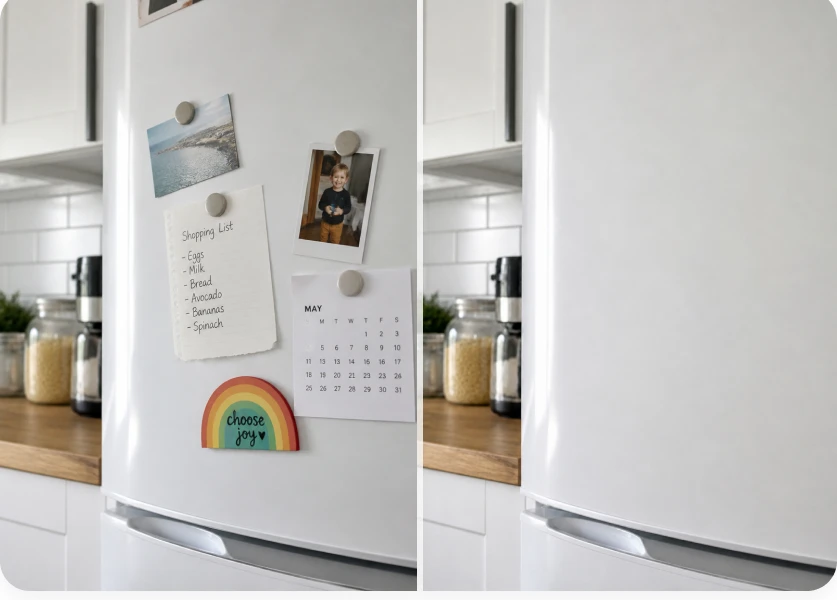
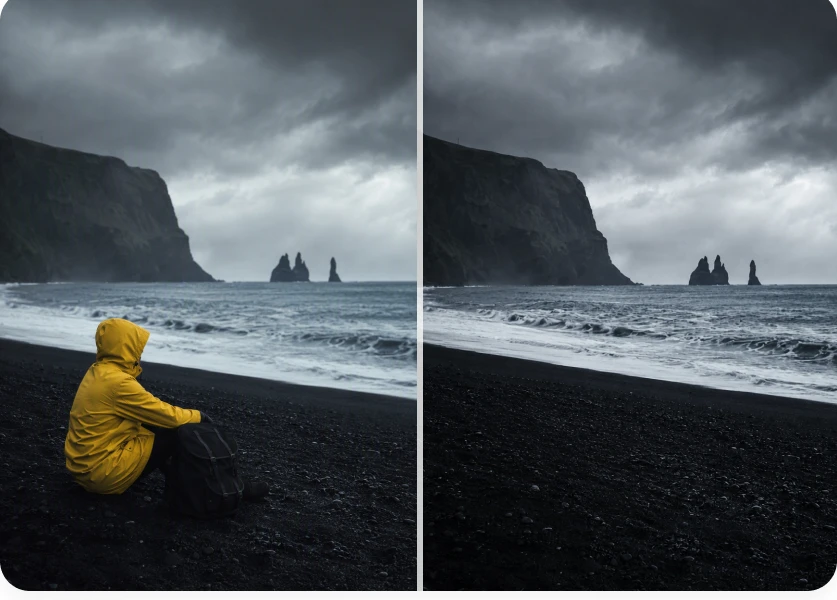
AI Object Remover before and after example 1AI Object Remover before and after example 2AI Object Remover before and after example 3AI Object Remover before and after example 4

How to Remove an Object from a Photo Online

Upload an image, brush over the object, and let AI remove it

1

Upload Your Image

Choose the photo or image that contains the object, person, or distraction you want to remove.

2

Brush Over the Object

Use Erase mode to brush over the entire object and any edges you want removed. Adjust the brush size, move or zoom the image, and use undo or redo to fine-tune the selection.

3

Remove and Download

Click Remove Object and review the result. Download the PNG, adjust the selection and try again, or continue editing with other Morph Studio image tools.

Continue Cleaning and Enhancing Images

Remove backgrounds, clear text or watermarks, and improve image detail with related Morph Studio tools

Frequently Asked Questions

Everything you need to know about removing objects from photos

What is an AI object remover?
An AI object remover removes a selected person or object from a photo and fills in the space using the surrounding image as a guide. With Morph Studio, upload a photo, brush over what you want to remove, and generate the result.
Is AI Object Remover free to use on Morph Studio?
Yes. Eligible signed-in Basic users receive one successful AI Object Remover generation per quota period. This is a limited free opportunity; additional generations require an eligible paid plan and the Credits shown in the product at generation time.
How do I remove an object from a photo online?
Upload a photo and brush over the object or area you want to remove. Click Remove Object, review the result, and download the PNG. If the selected area needs more work, adjust the brush selection and try again.
What can I remove from an image?
You can remove people, photobombers, props, signs, wires, background clutter, and other unwanted details. Brush over the full object and any connected edges you want removed. Results vary with the image, selection, and surrounding detail.
Can I remove a person from a photo?
Yes. Brush over the person you want to remove, including the full area that AI needs to fill, then generate the result. Removing a person often leaves a larger area to rebuild than removing a small object, so results depend on the pose, overlap, selection, and visible background.
Does AI Object Remover select the object for me?
No. Morph Studio uses a brush-based workflow, so you choose the exact area to remove. Upload an image, switch to Erase mode, brush over the unwanted region, and refine the selection with brush size, zoom, move, undo, redo, or clear.
How can I get a better object removal result?
Start with a clear image and brush over the entire object, including any connected edges that should disappear. Avoid brushing over surrounding details you want to keep. Complex overlaps, large selections, motion blur, reflections, and detailed backgrounds can make the result less predictable.
What is the difference between Object Remover and other Morph Studio remover tools?
AI Object Remover fills in a specific area that you brush over. Use AI Image Text Remover to remove visible printed or handwritten text, Image Watermark Remover to remove a watermark, or AI Background Remover to separate a subject from the full background.
What file type does AI Object Remover return?
AI Object Remover exports the result as a PNG image. You can compare it with the original, download the PNG, or continue editing with related Morph Studio tools such as AI Image Upscaler.
Is AI Object Remover the same as a magic eraser or photo eraser?
Magic eraser, photo eraser, and image eraser are common names for tools that remove parts of a photo. Morph Studio's AI Object Remover uses a brush: you mark what you want to remove, then AI fills in the selected area. It does not automatically choose the object for you.
Can I use images edited with AI Object Remover commercially?
Commercial use depends on your Morph Studio plan, the applicable usage terms, and the rights attached to the original image. Before publishing or using an edited image for ads, ecommerce, client work, or brand content, make sure you own the source material or have the necessary permissions.

Try Morph Studio's Free AI Object Remover

Upload a photo, brush over what you want to remove, and let AI fill in the selected area.

Morph Studio
Email
Continue
By continuing, you agree to theTerms of ServiceandPrivate Policy.