
Seedream 5.5 AI Image Generator
Create campaign posters with readable lettering, product scenes with convincing textures, and portraits you can keep refining. Use text or up to 10 reference images to build a visual direction, then change the setting, styling, or lighting without starting over. Bring your next idea to life with Seedream 5.5 in Morph Studio.
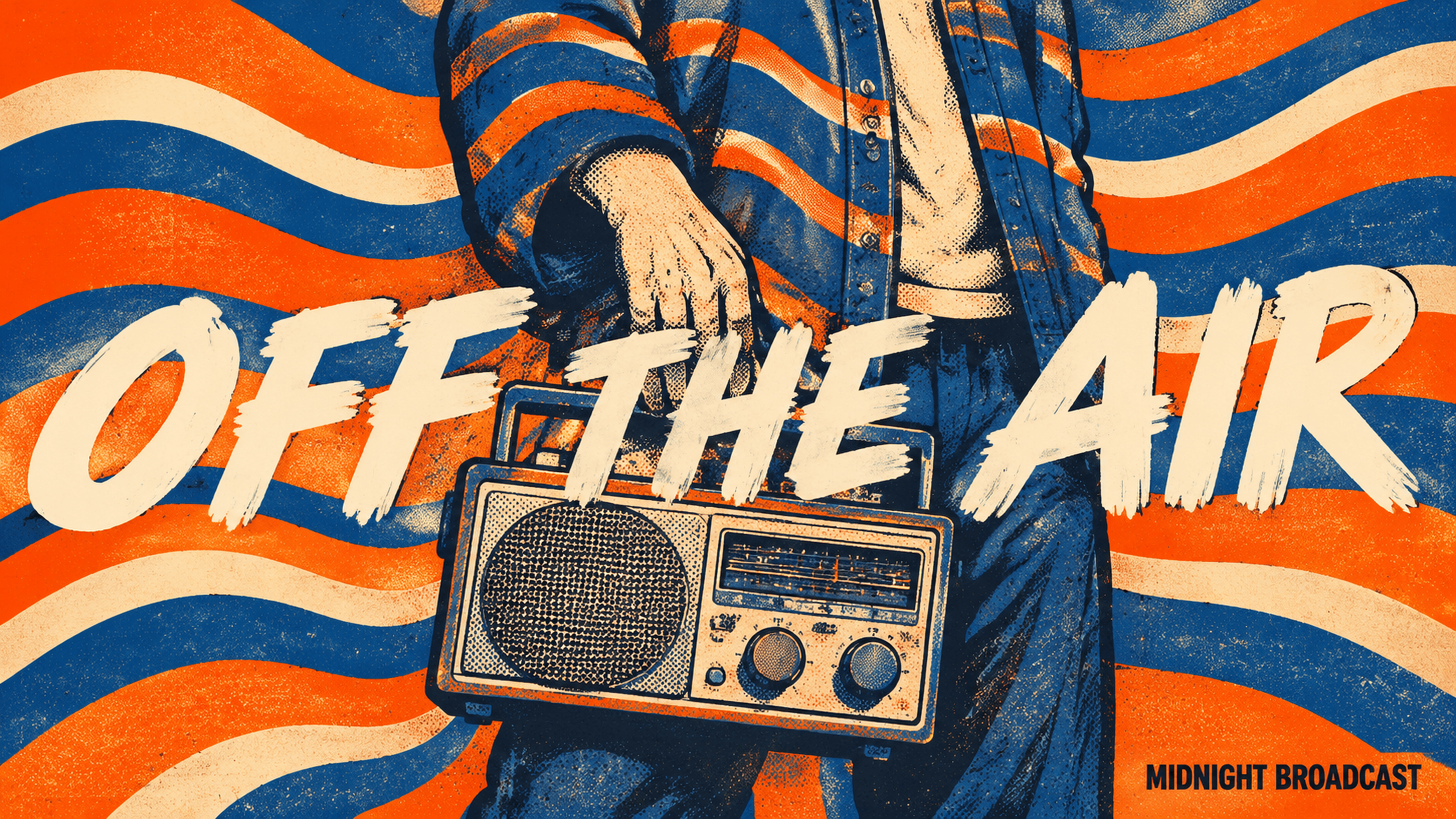

Give Your Words a Visual Identity
Turn a headline into a bold poster, weave lettering into a fashion portrait, or build a product scene around your brand's message. Seedream 5.5 brings text, subject, and composition together in one image. Describe the exact words, where they should appear, and the mood you want to create. Explore retro music artwork, editorial layouts, and campaign concepts with lettering that feels part of the design.
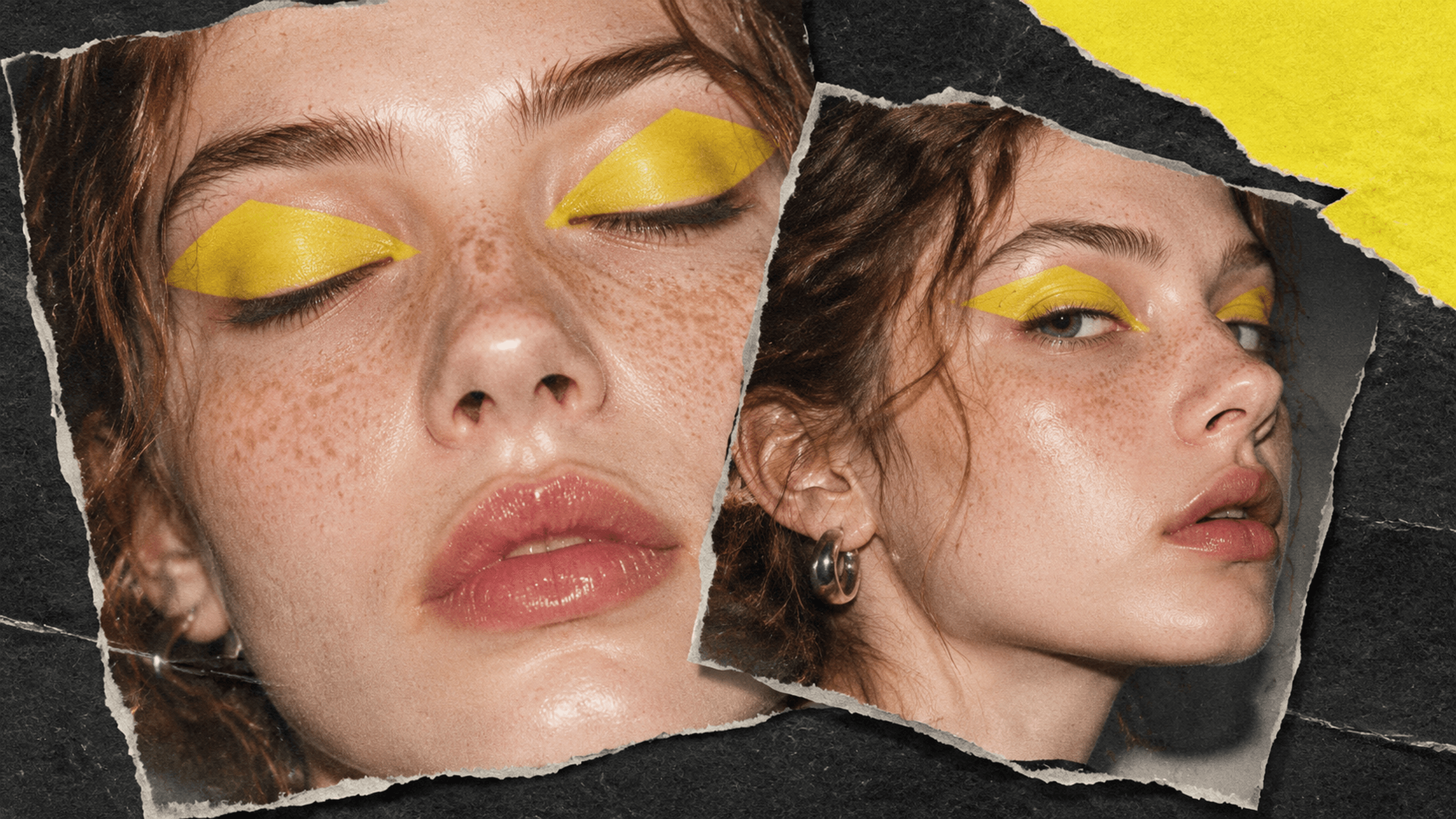
Refine the Look. Keep the Character.
Find a face, product, or visual style you love, then explore what comes next. Use up to 10 references for image-to-image editing: try new makeup, change the lighting, or move a character into a different setting while keeping their defining details in focus. Bring a result back as a reference for your next edit, and develop a connected set of portraits, product visuals, or story scenes.
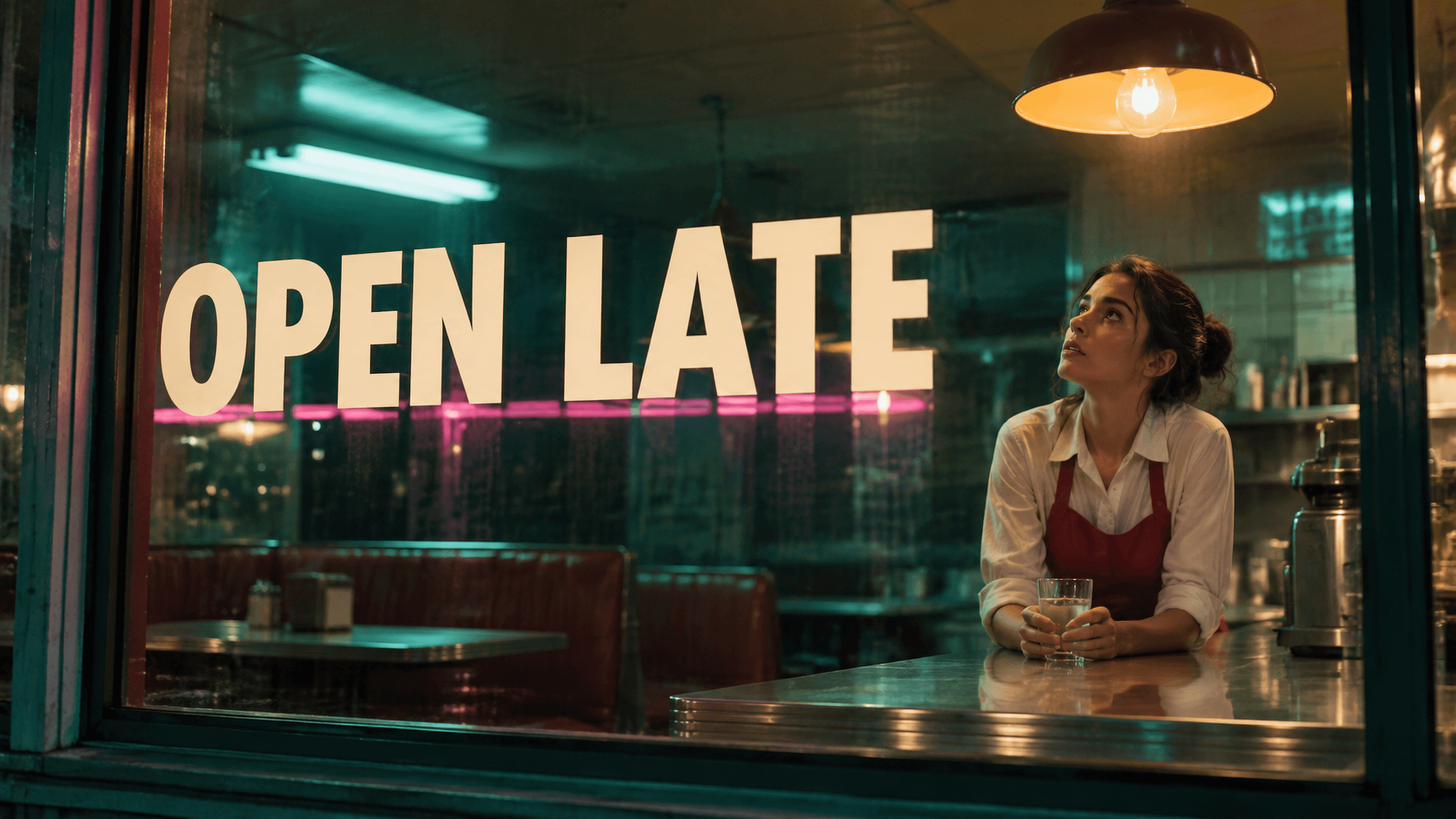
Make Every Scene Feel Real
Set a diner aglow after dark, catch soft window light on a portrait, or give a product the texture and reflections of a studio shoot. Seedream 5.5 creates images with considered lighting, natural materials, and rich detail. Shape the atmosphere through your prompt, then choose up to 2K output for your favorite direction. From an intimate scene to a vivid launch visual, give your audience something to linger over.
Create with Seedream 5.5 in 3 Steps
Take a written idea or reference image through to your next finished visual
Describe Your Vision
Write your subject, setting, style, and any exact wording. Start with a prompt or upload references to guide a character, product, or composition.
Choose Your Canvas
Pick an aspect ratio and 1K, 1.5K, or 2K resolution. Set the number of outputs, then review the credit quote before generating.
Generate and Refine
Review your image and download the PNG. Use a result as a reference for another edit, and revisit your creations in the image workspace or Library.
Explore other features
Discover more AI-powered creative tools from Morph Studio
Explore other features
AI-powered creative tools for every need
Frequently Asked Questions
Creating and editing images with Seedream 5.5 in Morph Studio
Give Your Next Idea a Signature Look
Create a bold poster, a lifelike scene, or a connected set of portraits. Bring your vision into focus with Seedream 5.5 in Morph Studio.